# Create Grading
Command description
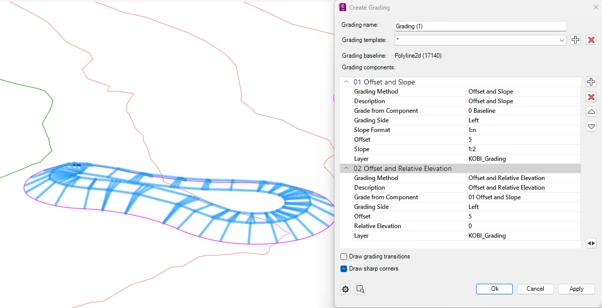
The Create Grading command builds a grading object by applying an ordered list of operations to a selected baseline. Operations can offset geometry, project by slope, create a surface, and create a solid from that surface.
To create grading
Click Kobi Civil Modeler tab > Grading Objects panel > Create Grading
 .
.Select the grading baseline in the drawing.
Enter the grading name and select or enter a grading template.
Add grading operations in the required order. Use the edit control beside an operation to define its values and target objects.
Use the arrow controls to reorder operations. Remove an operation that is no longer required.
Enable Draw grading transitions to connect changes between operation parameters or station ranges.
Enable Draw slope corners when the grading geometry must include the corner connections between adjacent slope regions.
Click Apply to rebuild and inspect the grading object. Click OK when the result is correct.
Available operation types include:
• Offset and Slope - Creates the next grading line at a specified offset and slope.
• Slope to Surface - Projects a slope until it intersects a selected surface.
• Slope to Elevation - Projects a slope until it reaches a specified elevation.
• Slope to Relative Elevation - Projects a slope to an elevation difference measured from the preceding grading line.
• Offset and Relative Elevation - Creates the next line from a horizontal offset and a relative elevation.
• Offset and Surface - Creates an offset line controlled by a selected surface.
• Surface from Grading Lines - Builds a surface from the grading lines generated by earlier operations.
• Solid from Surface - Creates a solid using the generated grading surface.