
# Create Solid from Drawing
Command description
The Create Solid from Drawing command uses cross-section geometry selected directly in the drawing. The geometry remains specific to the created object unless it is also saved to the library.
To create solid from drawing
Click Kobi Civil Modeler tab > Solid Objects panel > Create Solid from Drawing
 .
.Select the baseline.
Select the cross-section geometry. Use the Multiple option when the template contains several drawing objects.
Select the template base point. This point is placed on the baseline before offsets are applied.
Complete the name, offsets, station range, mirror option, and template settings in the dialog.
Click Apply to preview the solid, then click OK.
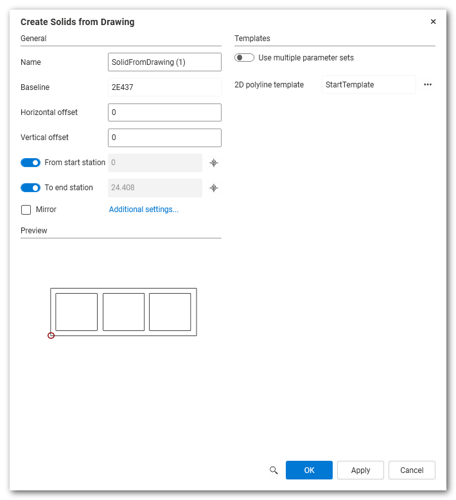
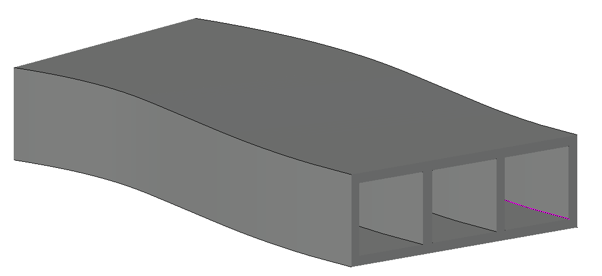
To use multiple parameter sets
A single baseline can use one template for its full length or multiple templates for different station ranges.
Click Kobi Civil Modeler tab > Edit Objects panel > Edit
 .
.Select Kobi solid in the drawing.
In the Edit Solids from Drawing dialog, switch Use multiple parameter sets on.
In Applied set field, you can add regions with the button
 .
.You can delete regions with the button
 .
.Move to the region with button
 or
or  .
.Add another template with the button
 next to the 2D polyline template field.
Select the template from the drawing and press Enter.
Select base point.
**Note: ** the selected template must have the same number of vertices as the current template.
- Click Apply and OK.