
# Analyze

Calculates different values (insertion points, swing direction, room size, etc.) from the model and writes them to shared parameters.
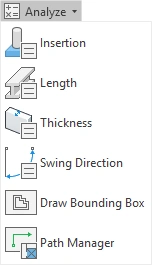
Click on the Kobi Toolkit tab > Go to Analysis panel > Click on Analyze
# Insertion 
Defines insertion point for the selected elements. Properties are defined as shared parameters so the user can easily use them in tags and schedules. The insertion tool can be used on:
- Structural Columns
- Architectural Columns
- Structural Foundations

Insertion Point to Parameter dialog box opens up. Here user can select the calculation origin as:
- Relative Base Point (internal)
- Project Base Point
- Survey Point
Note: The calues for the coordinates are not changed when the element is repositioned. Please run the command again, after modifying or adding elements.
Select Structural Elements > Click on the Kobi Toolkit tab > Go to the Analysis panel > Click on Insertion > Tool creates a Shared Parameter called Insertion point
# Length 
Defines the real length of selected Structural Framing elements. Properties are defined as shared parameters so the user can use them in tags and schedules.
Select elements of Structural Framing > Click on the Kobi Toolkit tab > Go to the Analysis panel > Click on Length > Tool creates a new Shared Parameter
# Thickness 
Defines the total thickness of selected Walls, Floors, Roofs, or Foundation Slabs. Properties are defined as shared parameters so the user can use them in tags and schedules.
Select Walls, Floors, Roofs, or Foundation Slabs > Click on the Kobi Toolkit tab > Go to the Analysis panel > Click on Thickness > Tool creates a new Shared Parameter fot Total Thickness
# Swing Direction 
Creates a shared parameter for Door and Window instances and calculates swing direction.
The tool displays a list of door families (and window families if you choose so in settings), where you define the default swing for each family. This is used to define the swing direction for each instance in the project. In addition to door families, you can choose to calculate swings for windows. You can update wordings (translations) in the dialog.

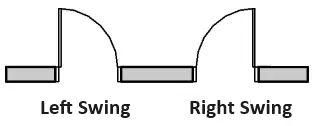
Click on the Kobi Toolkit tab > Go to the Analysis panel > In the drop-down menu select the Swing Direction > Select family change door swing by double-clicking on the default door swing option > In the drop-down menu select the desired door swing
# Draw Bounding Box 
Draws Detail Lines around the selected element.
Select an element > Click on the Kobi Toolkit tab > Go to the Analysis panel > In the drop-down menu select the Draw Bounding Box > The tool draws Detail Lines around selected element.
# Path Manager 
Path Manager opens a dialogue, where you can manage templates for creating and analyzing paths in the project. By specifying the rooms, the tool calculates the shortest distance between them and draws the Path of Travel.
Compared to the Revit tool Path of Travel, which determines the shortest distance between two points on a floor plan, Path Manager allows you to calculate the distance and travel time between multiple points (rooms).

Click on the Kobi Toolkit tab > Go to the Analysis panel > In the drop-down menu select the Path Manager > Add rooms to the path of travel > Save the template > Click on Create Path