
# Manage Calculated Parameters

This tool enables user to define rules (formulas) to run on chosen instances and update parameters (e.g., sum all Length parameters on ducts in the parameter filter and set it back to each instance). It enables user to read the values of host or room elements and write them into the hosted element.
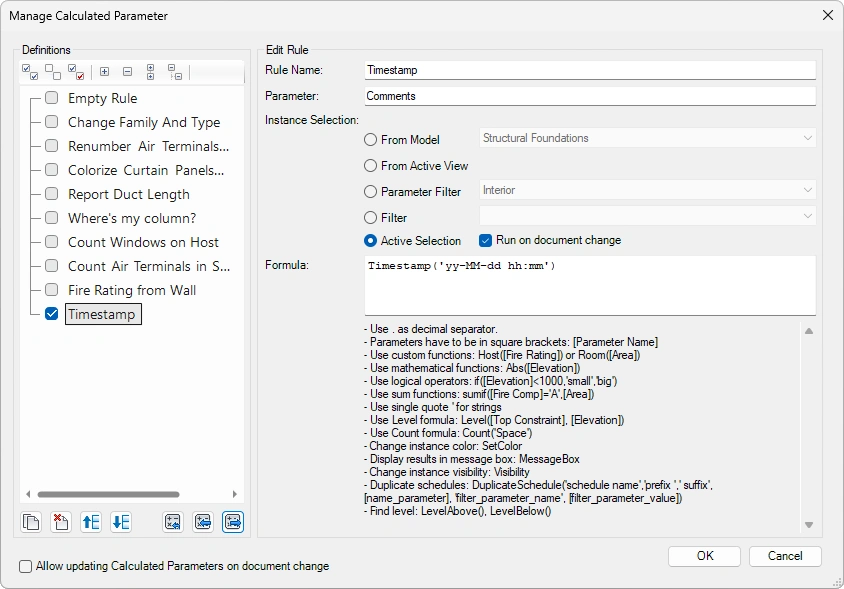
Definitions - Select one or more predefined definitions. In the bottom part of this section are additional options for managing definitions.
Use toolbar to:

Select all nodes
Deselect all nodes
Invert checked nodes
Collapse selected nodes
Expand selected nodes
Collapse all nodes
Expand all nodes
Use toolbar to:

Duplicate the rule
Delete rule
Move rule up
Move rule down
Load default rule definition
Import rule definition
Export rule definition
Export rule definition to JSON file:
- Export All
- Export Selected
Edit rule - Select the rule you wish to edit. Edit its Rule Name and Parameter. Define if the Instance selection is made from the Entire Model, From Active View, Parameter Filter, Filter, or Active Selection (option to Run on document change).
Formula: Enter the formula for the rule. You can use the written indents for help:
- Use . as decimal separator.
- Parameters have to be in square brackets: [Parameter Name]
- Use custom functions: Host([Fire Rating]) or Room([Area])
- Use mathematical functions: Abs([Elevation])
- Use logical operators: if([Elevation]<1000,'small','big')
- Use sum functions: sumif([Fire Comp]='A',[Area])
- Use single quote ' for strings
- Use Level formula: Level([Top Constraint], [Elevation])
- Use Count formula: Count('Space')
- Change instance color: SetColor
- Display results in message box: MessageBox
- Change instance visibility: Visibility
- Duplicate schedules: DuplicateSchedule('schedule name','prefix ',' suffix',[name_parameter], 'filter_parameter_name', [filter_parameter_value])
- Find level: LevelAbove(), LevelBelow()
Alow updating calculated parameters on document change – Updates calculated parameters automatically when the document changes.
Click on the Content Admin Kit tab > Go to Parameter Administration Kit panel > Click on Ma_nage Calculated Parameters_