
# BIM Query

More examples on how to use BIM Query:
- Analyze Revit Model with Excel (opens new window)
- How To Create New Sheets (opens new window)
- Color Code (opens new window)
- Delete View Templates (opens new window)
Choose categories and parameters to populate in a MS Excel spreadsheet-like editor. Edit the data in the dialog or save it to a MS Excel file. Once finished editing, the properties can be applied back into the model.

Query panel
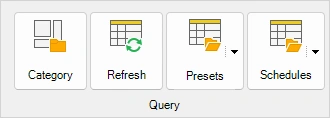
Category
Select categories and properties to populate a spreadsheet.
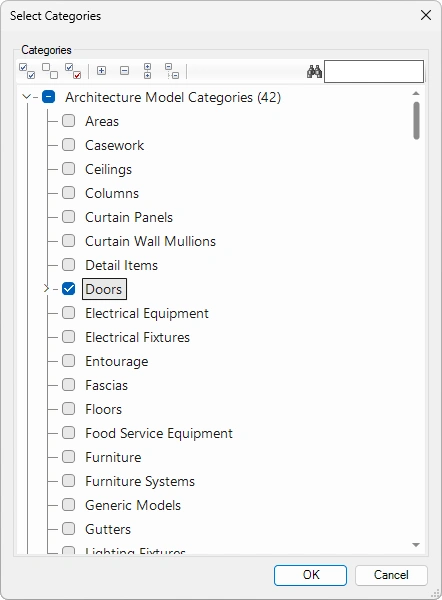
Select Category tool - Select families or element by checking boxes or right-clicking on element names - Press OK use toolbar to:

Select all nodes
Deselect all nodes
Invert checked nodes
Collapse selected nodes
Expand selected nodes
Collapse all nodes
Expand all nodes
Search elements by name
Refresh
Refresh the spreadsheet using a current query.
Presets
Select, save, or manage preset queries to populate spreadsheets.
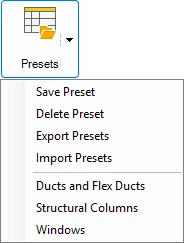
Save Preset
Saves current Query to the drop-down list.
Open Query you want to save as preset – Select Presets drop-down - Select Save Preset - Type in the preset name and select Save - Saved presets are listed in the drop-down list.

Delete Presets
Deletes presets from the list. Presets drop-down: Select Delete Presets - Select presets by checking boxes or right-clicking on preset names - Click OK - Presets should be unlisted from the drop-down list.
Use toolbar to:
Select all nodes
Deselect all nodes
Invert checked nodes
Collapse selected nodes
Expand selected nodes
Collapse all nodes
Expand all nodes
Search elements by name
Export presets
Export the presets from the list to an external file.
Presets drop-down: Select Export Presets - Navigate to the desired folder - Input file name – Click on Save to export file.
Import presets
Import presets into the list from the external file.
Presets drop-down: Select Import Presets – Navigate to the exported presets folder - Select external file (*.BQL file type) – Click on Open to import the file.
Open presets
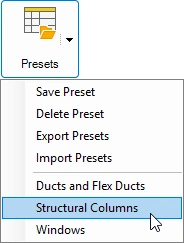
Presets drop-down: Select desired preset - Selected Query command should be displayed.
Schedules
Opens schedules in MS Excel spreadsheet-like editor. This enables you to save or edit schedules from MS Excel files.
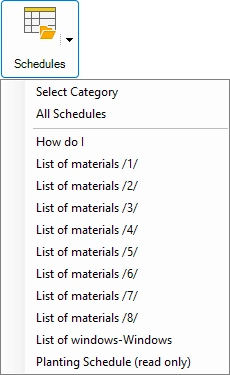
Schedules drop-down: Select schedule (or click on All Schedules to open all of them in individual tabs).
Tools panel
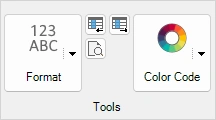
- Format
Select the desired format for chosen cells, opting for either as Text or General (formula).

Select the cells you want to change the format of - Click on the Format tool - Select Text or General (formula).
Move selected cells left

- Move selected cells left: Moves selected cell one column to the left.
- Move selected cell right: Moves selected cell one column to the right.
Find and replace text

Search for words/phrases in the spreadsheet or replace the searched words/phrases
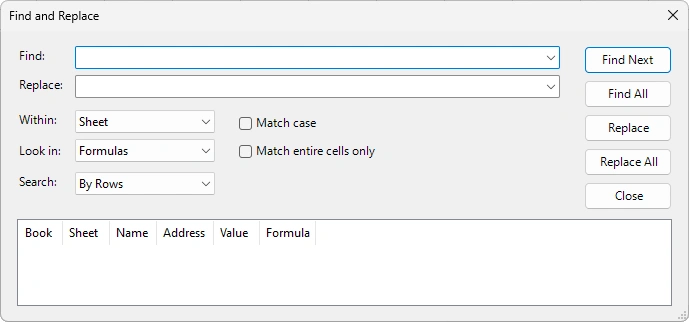
Click on the Find and Replace icon - Input words/phrases you want to search for into the Find bar - Input words/phrases you want to replace with into the Replace bar - Set search conditions - Use Find Next/Find All or use Replace/Replace All command.
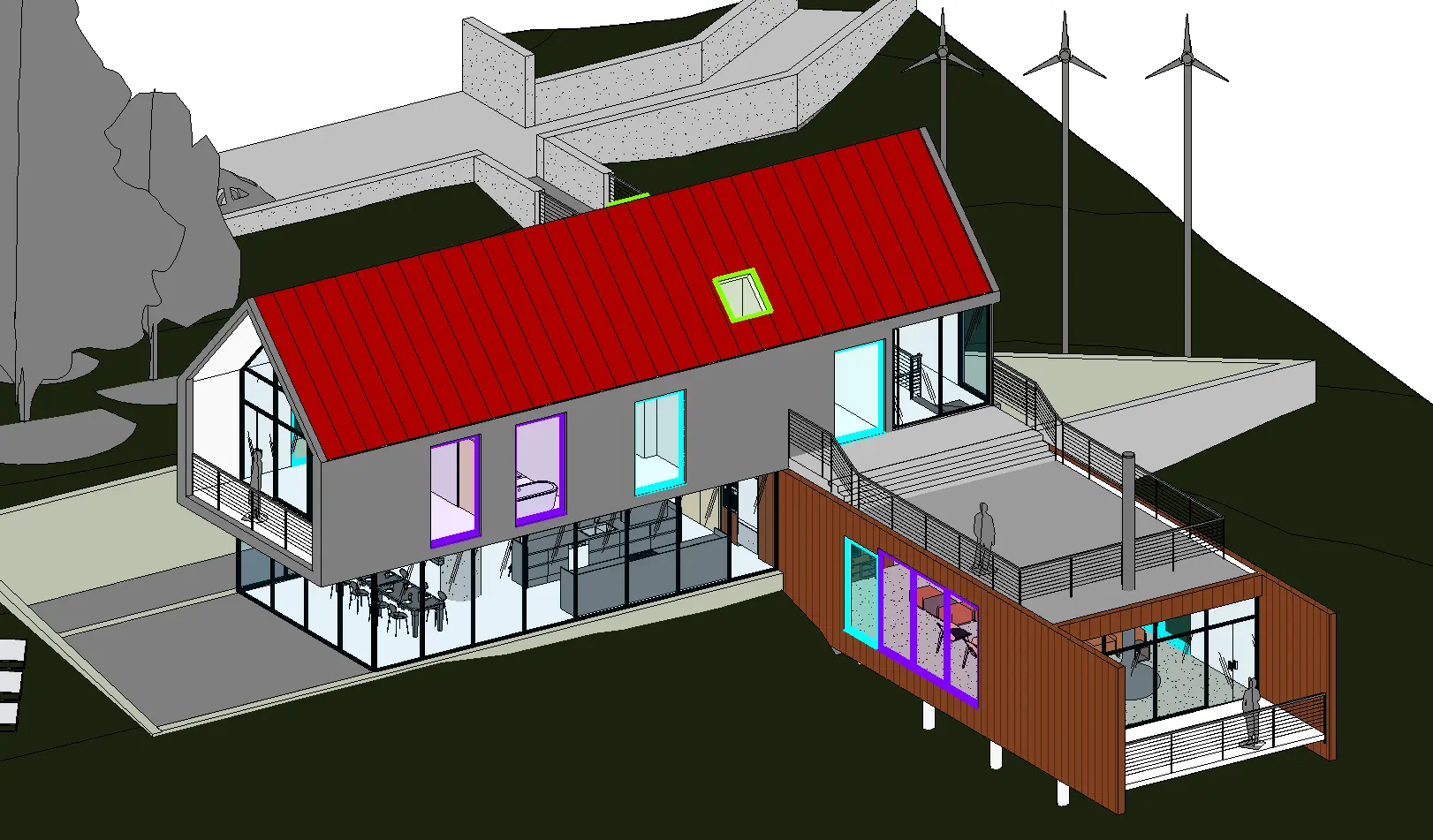
- Color Code

Use Color Code to differentiate between different values in the column. Select a cell/column where you want to apply the color code to and select Color Code


When selecting Apply and Close, the defined colors will be applied to the selected elements as a Graphics Override.
File panel
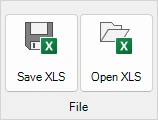
Save XLS
Save the spreadsheet into an external Excel workbook file.
Click on Save XLS tool - Navigate to desired folder - Input file name - Export file.
Open XLS
Open the spreadsheet from the external Excel workbook file.
Click on Open XLS tool - Navigate to external file location folder - Select external Excel workbook file - Open file.
Action panel

- Apply
Apply properties from the spreadsheet to elements in the active model.
Apply drop-down - Select Apply or Apply with Location.

- Apply and Close
Apply properties from the spreadsheet to elements in active mode and close the dialog.
Apply and Close drop-down - Select Apply & Close or Apply with Location & Close.

- Select and Close
Select active cell instances in the model and close the dialog.
Select cells of elements you want to select in the model - click on the Select and Close
- Close
Close the dialog window.
Click on the Kobi Toolkit tab > go to BIM Manager Panel > Click on BIM Query tool
← BIM Project Cleanup →