
# Project Cleanup

Tools to help you clean up the current project, from removing unplaced rooms to purging unnecessary line types or materials, etc. They provide the ability to create a lightweight file that contains only the views and elements specified by the user.
Click on the Kobi Toolkit tab > go to QA/QC panel > Click on Project Cleanup

# Material Cleanup 
The list of materials included in the project is displayed in the dialog box. You can use the search option, select multiple materials at once, and rename them (update them with a prefix or a suffix). You can also delete selected materials or delete only the unused ones.

Use toolbar to:

Select all nodes
Deselect all nodes
Invert checked nodes
Collapse selected nodes
Expand selected nodes
Collapse all nodes
Expand all nodes
Search elements by name
Use buttons to:

Rename selected materials: Add prefixes and suffixes to checked materials.
Select materials you want to add prefix or suffix - Click on the Rename selected materials icon - Enter suffix or prefix - Click OK.
Delete unused materials: Deletes checked materials, that are not used in the current project (3D or active view).
Select materials from which you want to purge unused materials - Click on the Delete unused materials icon - Confirm.
- Delete materials
Deletes checked materials from current project
Select materials you want to delete from the current project - click on the Delete materials icon - confirm
Kobi Toolkit tab > Go to QA/QC panel > Project Cleanup drop-down > Select Material Cleanup > Select materials by checking boxes or right-clicking on material names
# Unplaced Room Cleanup 
Displays the dialog box with a list of unplaced rooms (rooms with area=0). Unplaced Rooms can then be deleted from the current project using this dialog.

Kobi Toolkit tab > go to QA/QC panel > Project Cleanup drop-down > Select Unplaced Room Cleanup > Select unplaced rooms you want to purge > Click on Purge
# Unplaced Area Cleanup 
Displays the dialog box with a list of unplaced areas (areas with area=0). Unplaced areas can be deleted from the current project using this dialog.
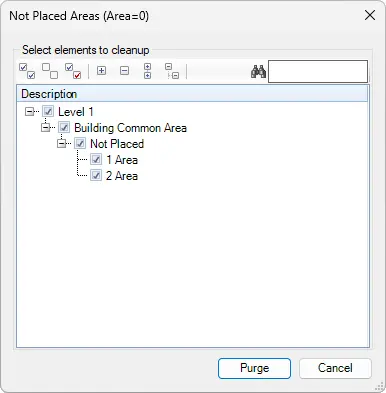
Kobi Toolkit tab > go to QA/QC panel > Project Cleanup drop-down > Select Unplaced Area Cleanup > Select unplaced areas you want to purge > Click on Purge
# Unplaced Space Cleanup 
Displays the dialog box with a list of unplaced spaces (areas with area=0). Unplaced spaces can be deleted from the current project using this dialog.

Kobi Toolkit tab > Go to QA/QC panel > Project Cleanup drop-down > Select Unplaced Area Cleanup > Select unplaced areas you want to purge > Click on Purge
# View Cleanup 
Displays the dialog box showing a list of all views in the current project. Views can be deleted from the current project using this dialog. Save or load a view selection or choose views that are not placed on sheets.

Load/Save/Delete View configuration
Load: Select saved configuration from Load Configuration bar in drop-down list
Save: Select views by checking boxes or right-clicking on view names - Click on the Save
 icon - Name the configuration - Click OK.
Delete: Select saved configuration from the Load Configuration bar in the drop-down list - Click on the Delete
 icon .
Kobi Toolkit tab > Go to QA/QC panel > Project Cleanup drop-down > Select View Cleanup > Select views you want to purge by checking boxes or right-clicking on view names > Click on Clean
# Line Style Cleanup 
Displays the dialog box with a list of all line styles. Line styles can be deleted from the current project using this dialog. Read-only line styles will not be removed.
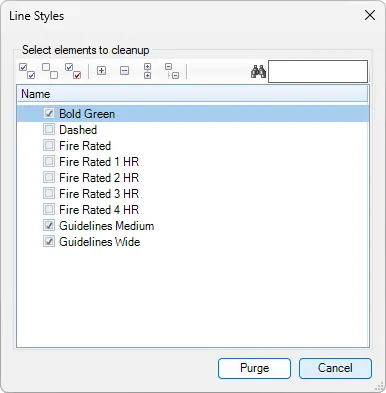
Kobi Toolkit tab > Go to QA/QC panel > Project Cleanup drop-down > Select Line Style Cleanup > Select lines styles you want to purge > Click on Purge
# Line Pattern Cleanup 
Displays the dialog box with a list of all line patterns. Line patterns can be deleted from the current project using this dialog.

Kobi Toolkit tab > Go to QA/QC panel > Project Cleanup drop-down > Select Line Pattern Cleanup > Select lines patterns you want to purge > Click on Purge
# Fill Pattern Cleanup 
Displays the dialog box with a list of all fill patterns. Fill patterns can be deleted from the current project using this dialog.

Kobi Toolkit tab > Go to QA/QC panel > Project Cleanup drop-down > Select Fill Pattern Cleanup > Select fill patterns you want to purge > Click on Purge
# Dimension Cleanup 
Displays a dialog box to choose settings for overridden dimensions. Once the dimensions have been identified, it is possible to select it, override visibility graphics, or export it to a text file.

Kobi Toolkit tab > Go to QA/QC panel > Project Cleanup drop-down > Select Dimension Cleanup > Select Model or Active View, check overrides and graphics > Click on Apply
# Text Note Type Cleanup 
Displays the dialog box with a list of all text note types. Text note types can be deleted from the current project using this dialog.
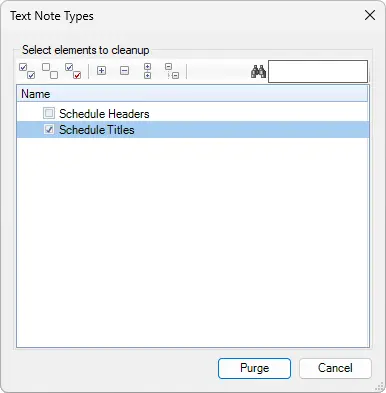
Kobi Toolkit tab > Go to QA/QC panel > Project Cleanup drop-down > Select Text Note Type Cleanup > Select text note types you want to purge > Click on Purge
# Subcategories Cleanup 
Displays the dialog box with a list of categories and subcategories. You can select all subcategories you would like to purge from the project file.
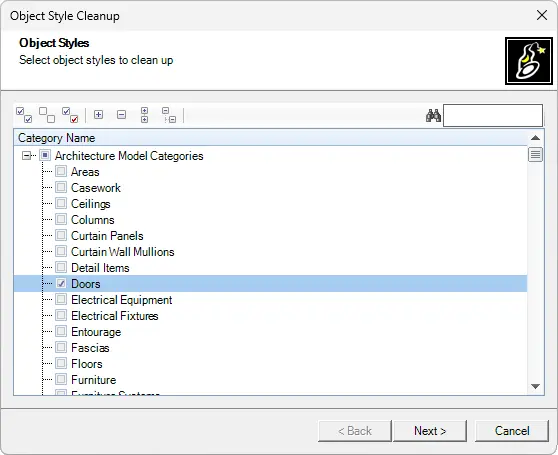

Kobi Toolkit tab > Go to QA/QC panel > Project Cleanup drop-down > Select Subcategories Cleanup > Select categories by checking boxes or right-clicking on text note types names > Select subcategories you want to purge from the project file > Click on Finish
# Design Option Cleanup 
Deletes unused design options from the project.
Displays a dialog listing all design options, where you can select the options to remove from the project file.
Kobi Toolkit tab > Go to QA/QC panel > Project Cleanup drop-down > Select Design Option Cleanup > Select design options you want to purge > Click on Purge
# Revit Link Cleanup 
Deletes unplaced Revit link from the project.
Displays a dialog listing all unplaced Revit links, where you can select the links to remove from the project file.
Kobi Toolkit tab > Go to QA/QC panel > Project Cleanup drop-down > Select Revit Link Cleanup > Select Revit links you want to purge > Click on Purge
# View Template Cleanup 
Deletes unused view templates.
Displays a dialog listing all view templates, where you can select the templates to remove from the project file.
Kobi Toolkit tab > Go to QA/QC panel > Project Cleanup drop-down > Select View Template Cleanup > Select view templates you want to purge > Click on Purge