
# Parameter Manager

With this tool, users can create new project parameters and/or edit family parameters (e.g. convert parameters from instance to type-based, import many shared parameters at once, etc.).
In a project file, the user can import one or more shared parameters and apply them to multiple categories at once in a selected group.
In a family file, user can manage several parameter properties at once. Additionally, it is possible to change parameters from instance to type, delete, and import one or more shared parameters from the shared parameter file. The tool enables user to export parameters to a JSON file which can be imported to a different family file with the same parameters and definitions.
# Shared Parameter Manager
Parameter Manager allows you to apply selected Shared Parameters to multiple Categories.

Use toolbar to:

Select all nodes
Deselect all nodes
Invert checked nodes
Collapse selected nodes
Expand selected nodes
Collapse all nodes
Expand all nodes
Search elements by name
Click on the Content Admin Kit tab > Go to Parameter Administration Kit panel > Click on Parameter Manager
# Family Parameter Manager
Family Parameter Manager allows users to Import, Export, Remove, and manage Family parameters in a quick and straightforward way.

Shared Parameter File: Shows the path of the Shared Parameter File. To Change the path, select the (three dots) button to open the folder browser. Navigate to the desired folder of your Shared Parameter File. Press Open to open the selected file.
Available Parameters (tab): Shows a list of all the available parameters inside the family. Parameters are organized in a tree structure. Each Parameter is marked either as an Instance Parameter (default), Shared Parameter (*), or Built-In Parameter (x).
The Parameter Manager dialog box allows users to convert Revit Family Parameters from one type to another (e.g. convert parameters from instance to type-based), Import / Export many Shared Parameters at once, or Remove selected Parameters.
Select Parameters by checking the boxes in front of them. Use the toolbar to:

Select all nodes
Deselect all nodes
Invert checked nodes
Collapse selected nodes
Expand selected nodes
Collapse all nodes
Expand all nodes
Buttons to manage selected parameters:
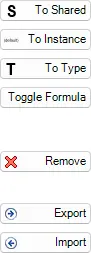
To Shared: Convert selected Parameters to Shared Parameter Type.
To Instance: Convert selected Parameters to Instance Parameter Type.
To Type: Convert selected Parameters to Type Parameter.
Toggle Formula: Define Forumula for selected Parameters.
Remove: Remove selected Parameters.
Export: Export selected Parameters to JSON file.
Import: Import selected Parameters to Revit Family.
Import Shared (tab):
Shows a list of imported Shared Parameters

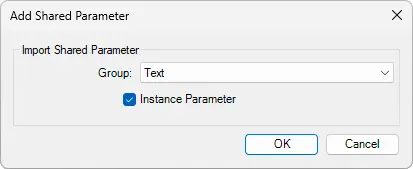
To add Shared Parameters, select Import. Add Shared Parameter dialog opens up, where you can select a Group for Shared Parameter and check if you want to import it as Instance Parameter.
Open Revit Family > Click on the Content Admin Kit tab > Go to the Parameter Administration Kit panel > Click on Parameter Manager
# Tips and Tricks: Transfer Shared Parameters from one Revit Family to multiple families
Read blog article (opens new window) with an example on how to transfer Shared Parameters from one Revit Family to multiple families
Export Shared Parameters into JSON file
Open a Family from which you want to export Shared Parameters from. Go to the Content Admin Kit tab and open Parameter Manager.
Select the parameters you would like to export into a JSON file and click Export.
Define a path and a File name.
Apply Exported Shared Parameters to multiple families at once
Go to the Content Admin Kit tab and select Update Category  .
.
Update Family Category dialog box opens up. Under Data press (three dots) and select the folder in which you have all the families that you want to update. Under Import, JSON Definition select  (three dots) to select the JSON file you exported earlier. Select OK.
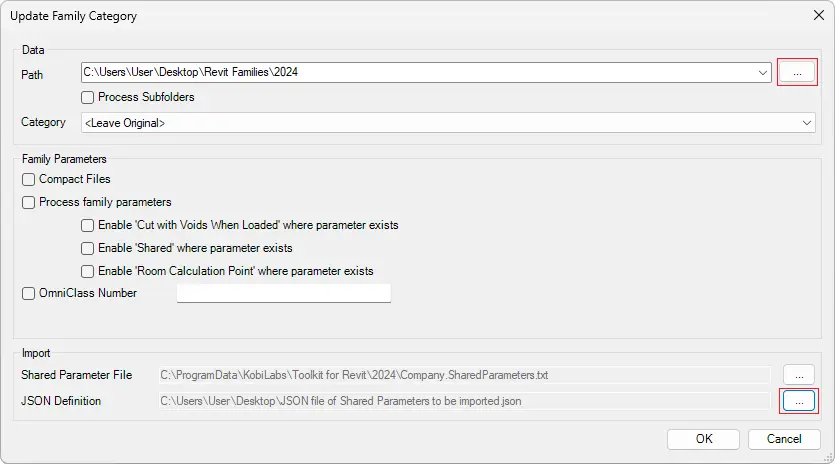
All the Families in the selected folder will get updated and will now include the applied shared parameters.