
# BIM
Different management tools to help with BIM management for the project.
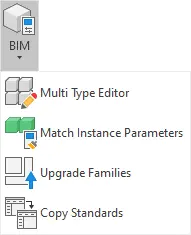
Click on the Kobi Toolkit tab > go to BIM Manager panel > Click on BIM
# Multi Type Editor 
Multi type editor displays a tree of elements in a project, which can be edited, changed and arranged at the same time.
Note: This tool is available only in Revit 2024 and earlier.
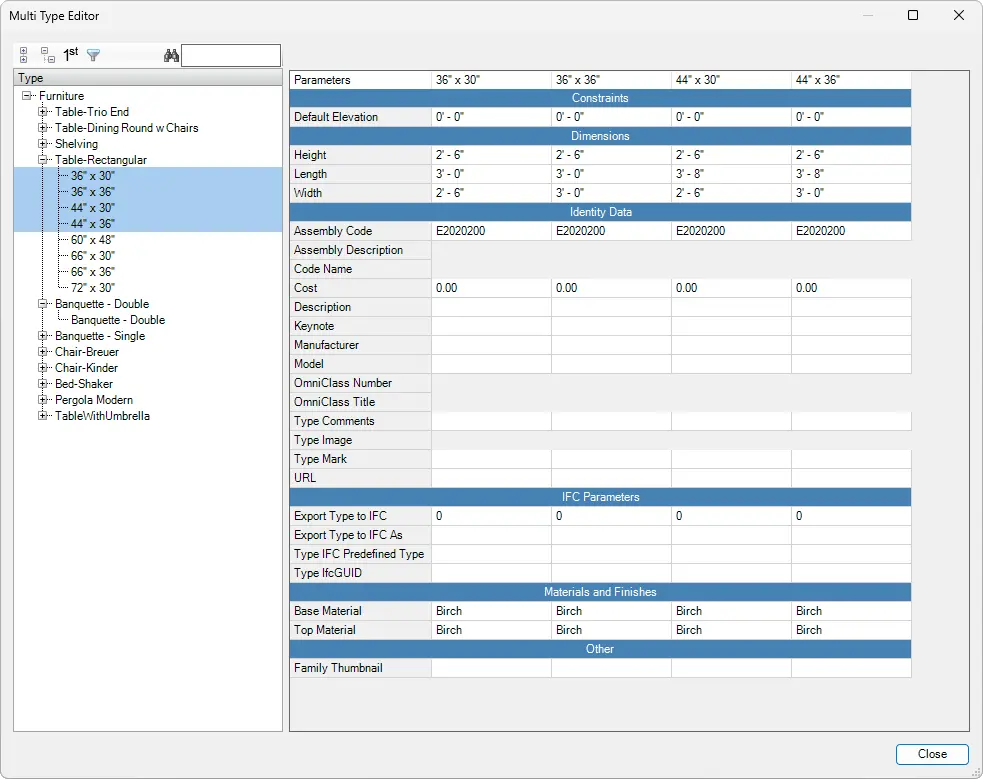
Edit elements - Use the toolbar to:

- Collapse all nodes
- Expand all nodes
- Expand nodes on the first level
- Select categories
- Search elements by name
Clicking on  will open a new dialog box - Select Categories to display. Select categories by checking boxes or right-clicking on the category names. Click OK to confirm the choice.
- Edit values:
Select the element (hold down the control or shift key to select multiple elements) and edit the cells in the parameters tab. To change or enter new values, you can use copy (CTRL+C) and paste (CTRL+V) command to quickly change values.

Click on the Kobi Toolkit tab > Go to BIM Manager Panel > BIM dropdown > Click on Multi Type Editor tool
# Match Instance Parameters 
Match Instance Parameters copies instance parameters from the chosen to the selected element. It displays a dialogue where users can specify which instance property they would like to match.
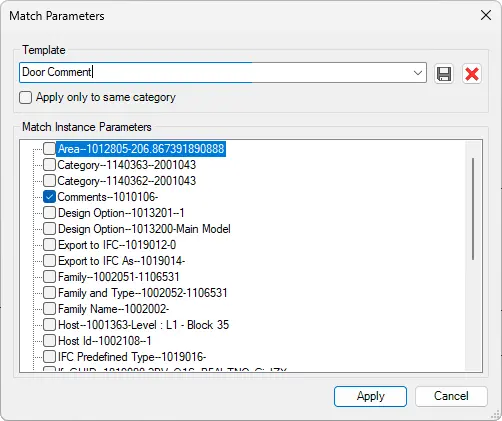
Select the instance in your model to which you want to apply properties > Click on the Kobi Toolkit tab > Go to the BIM Manager Panel > BIM dropdown > Click on the Match Instance Parameters tool > Select an element from which you want to copy property from > Check properties to copy in the dialog > Apply
# Upgrade Families 
Upgrades selected families from selected folder to the current version.
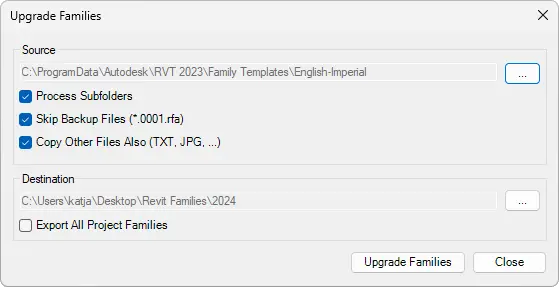
Click on the Kobi Toolkit tab > Go to BIM Manager Panel > Click on Upgrade Families tool > Browse for Source and Destination folders > Click on Upgrade Families
# Copy Project Standards 
With Copy Project Standards, you can copy selected views, view templates, and materials from one project to another. This can be done from any open Revit project or from an external .RVT file you select via the Browse button.
If some Types already exist in the project, you can choose to either import or ignore elements with existing Types. Optionally, you can automatically save the file after the upgrade.
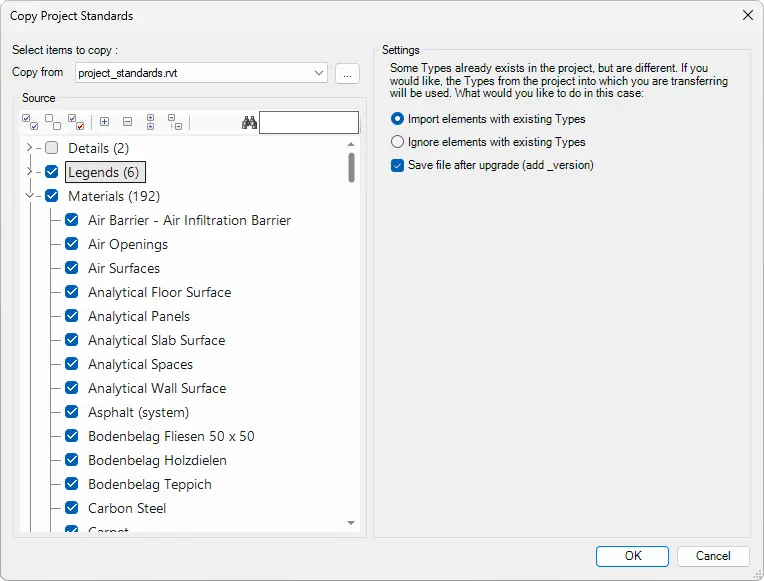
Click on the Kobi Toolkit tab > Go to BIM Manager Panel > BIM dropdown > Click on Copy Project Standards tool > Select Standards to copy > Define Target project > Click OK