
# Visibility

Changes visibility settings for selected or all rebars in the active view.
Note: Up to Revit 2023 the (Kobi Toolkit) Visibility tool offers four different rebar visibility options, in Revit 2024 and above it offers only two. Revit 2023 made it easier to view reinforcement in 3D as solids (Detail Level: Fine), and as wireframe (Detail Level: Medium), therefore the Make Wireframe in 3D and Make Solid in 3D were removed.
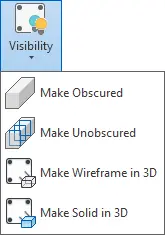
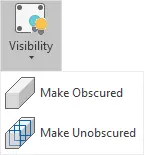
Click on the Kobi Toolkit tab > go to Reinforcement panel > Click on Visibility
Make Obscured

Makes selected rebar appear obscured in active 3D view. If nothing is selected, the tool selects rebar from active view.
Click on Visibility > In drop-down menu select Make Obscured
Make Unobscured

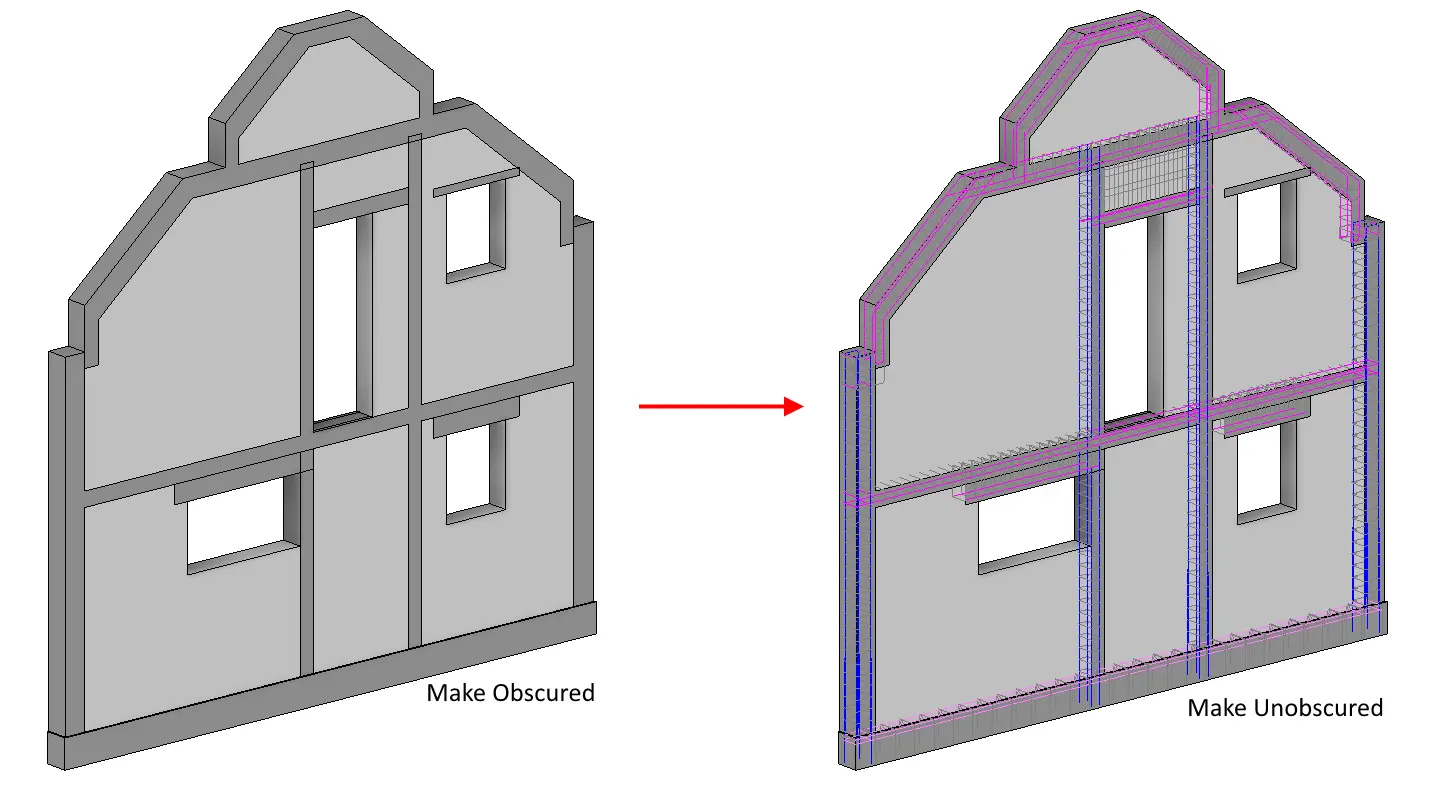
Makes selected rebar appear unobscured in active 3D view. If nothing is selected, the tool selects rebar from active view.
Click on Visibility > In drop-down menu select Make Unobscured
Make Wireframe in 3D

Makes selected rebar appear as lines in active 3D view. If nothing is selected, the tool selects rebar from active view.

Click on Visibility > In drop-down menu select Make Wireframe in 3D
Make Solid in 3D

Makes selected rebar appear solid in active 3D view. If nothing is selected, the tool selects rebar from active view.
Click on Visibility > In drop-down menu select Make Solid in 3D
