
# Import Spreadsheet

Imports selected spreadsheet (.xls, .xlsx) as a schedule in Revit.
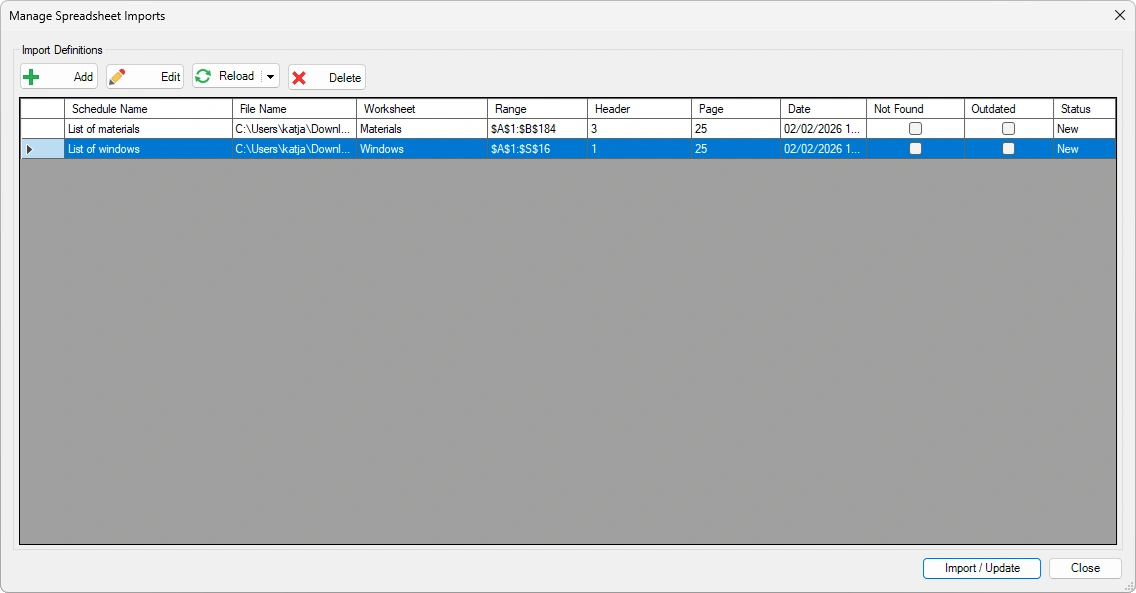
Import Definitions
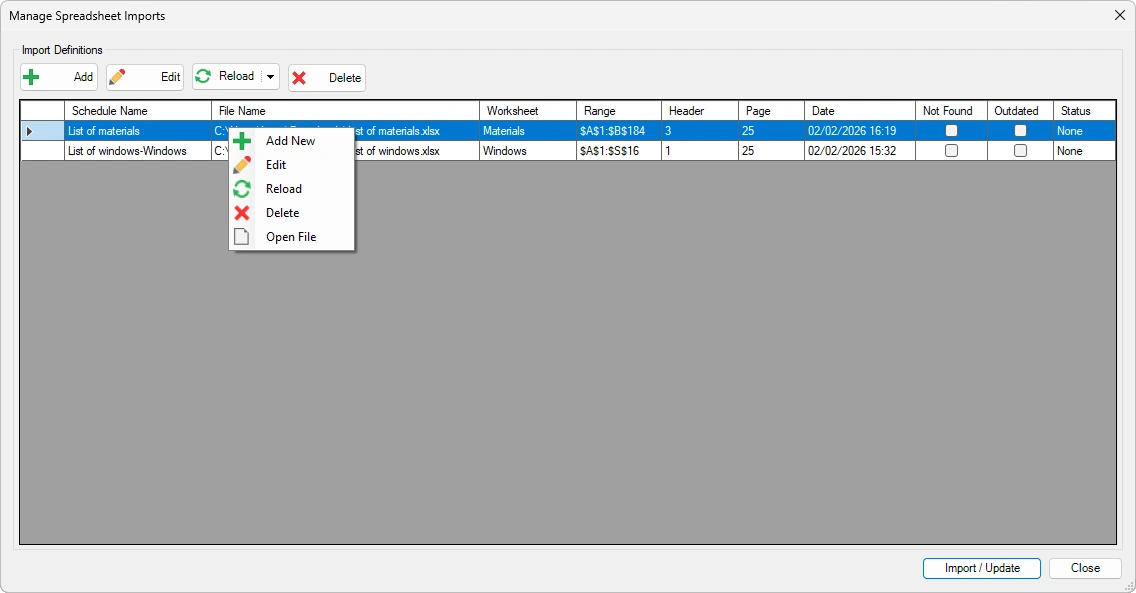
Add

Opens the Import Spreadsheet dialog, where you can import and manage Excel files.
Edit

Edits the selected spreadsheet from the list of imported spreadsheets.
Reload

Reloads Excel files from their original source. The Outdated column indicates files that have been changed since the last import.
 You can choose one of the following reload options:
- Reload Selected
- Reload All
- Reload Outdated
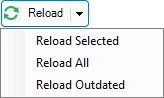
Note: Changes are applied after clicking Import/Update button in the bottom-right corner of the dialog.
Delete

Removes the selected spreadsheet from the list.
Note: The spreadsheet is removed after clicking Import/Update in the bottom-right corner of the dialog.
Click on the Kobi Toolkit tab > Go to Annotate panel > Run Import Spreadsheet > In the Manage Spreadsheet Imports dialog, click Add to import a new spreadsheet
Add New spreadsheet
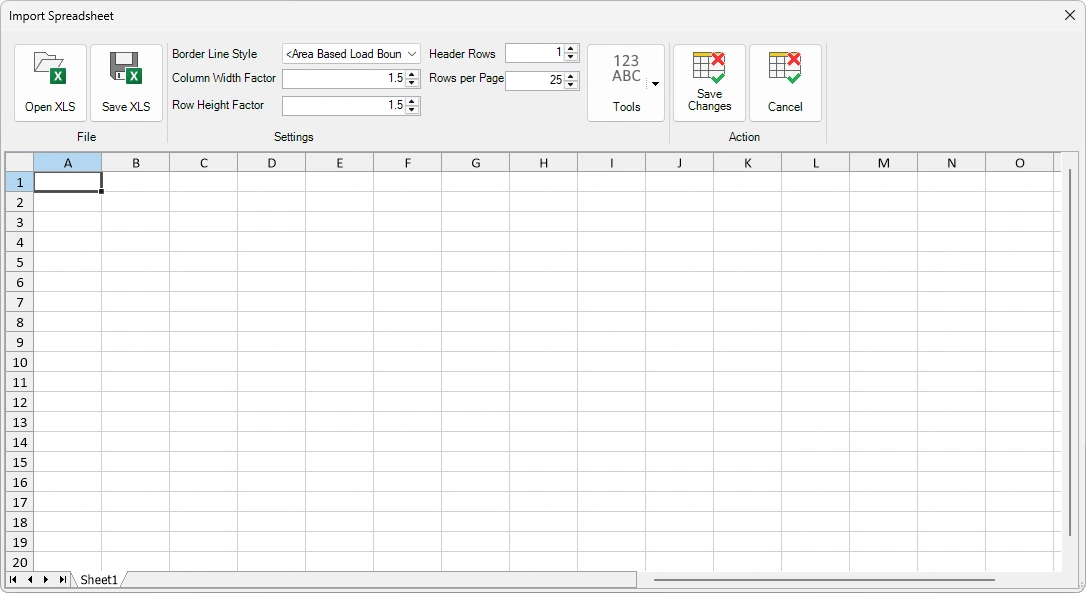
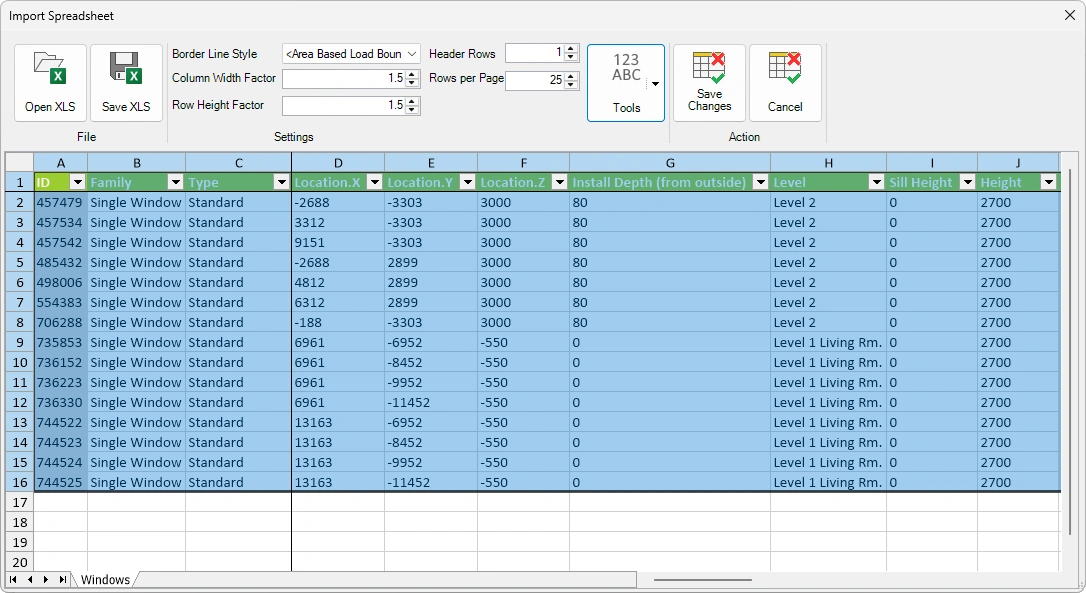
Clicking the Add button in the Manage Spreadsheet Imports dialog box opens a new dialog where you can open and manage your Excel file.
File panel
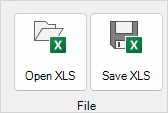
Open XLS
Opens a spreadsheet in Revit from an external Excel workbook file.
Click the Open XLS tool - navigate to the external file folder - select the Excel workbook file - open the file.
Save XLS
Saves a spreadsheet into an external Excel workbook file.
Click the Save XLS tool - navigate to the desired folder – input a file name – export the file.
Settings panel
Edit the imported table.
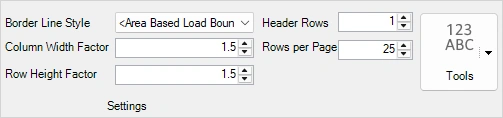
Border Line Style
Displays different line styles of borders.
Border Line Style
Select from a list of different border line styles.
Column Width Factor/ Row Height Factor
The spreadsheet can be scaled according to the column width and row height .
Header Rows
Define the number of rows that are used as a header.
Rows per Page
Define how you want to split your spreadsheet, for example, how many rows do you want to place per page.
Tools
Provides options to Select Used Cells or Reset Settings.
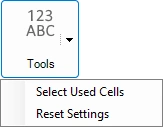
Note: Before saving the changes and importing the Excel spreadsheet, select the cells you want to import, either by selecting them in the table or by choosing Tools - Select Used Cells.
- Action panel
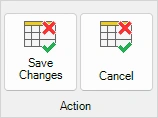
Save Changes
Saves the current changes and closes the Import Spreadsheet dialog. To import the Excel file into a schedule or update an existing one, click Import/Update.
Note: Before saving the changes and importing the Excel spreadsheet, select the cells you want to import, either by selecting them in the table or by choosing Tools - Select Used Cells.
Cancel
Cancels changes and closes the window.
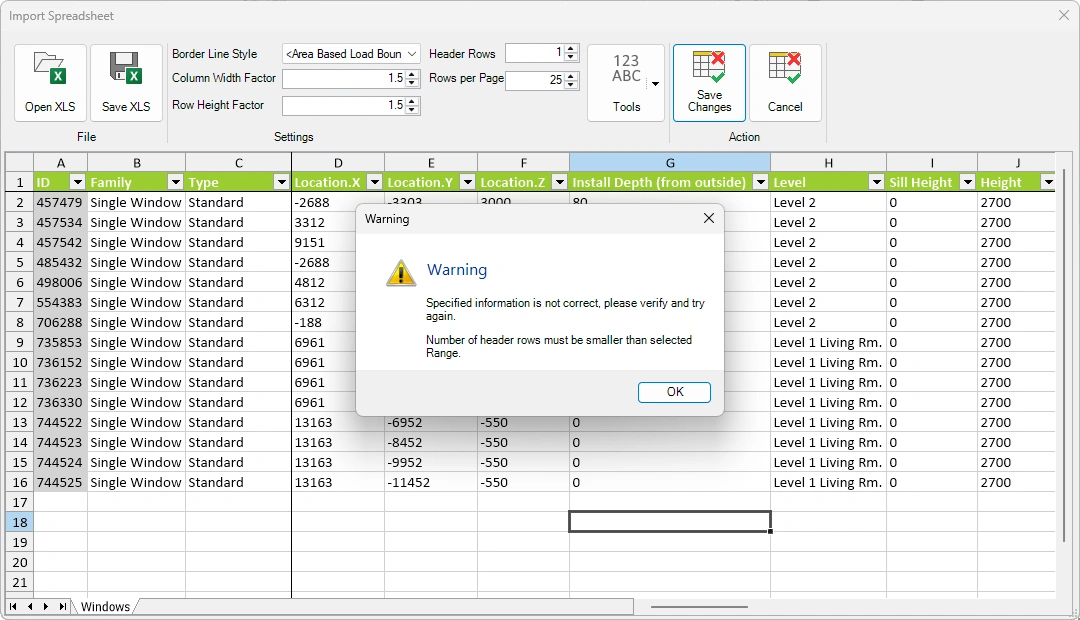
A warning appears if no cells are selected. Select the cells you want to import, either by selecting them in the table or by choosing Tools - Select Used Cells.
You can manage your imported spreadsheets by right-clicking them. When you are ready to import select Import / Update .
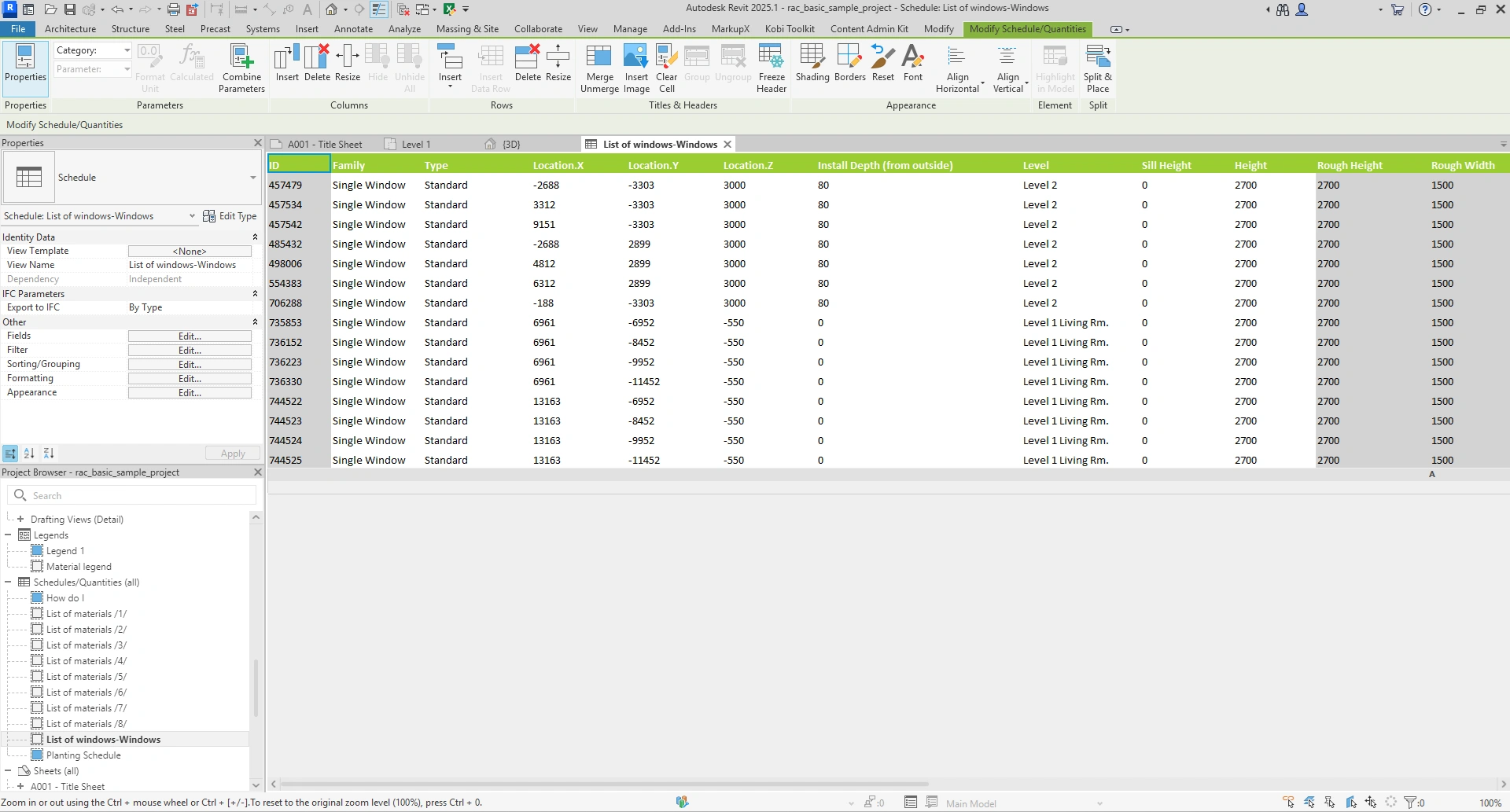
Click on the Kobi Toolkit tab > Go to Annotate panel > Run Import Spreadsheet > In the Manage Spreadsheet Imports dialog, click Add to import a new spreadsheet > Click Open XLS and select the Excel file > Define settings > Select the Columns and rows that you want to import or click on Tools – Select used cells > Click Save Changes, then click Import/Update to complete the import
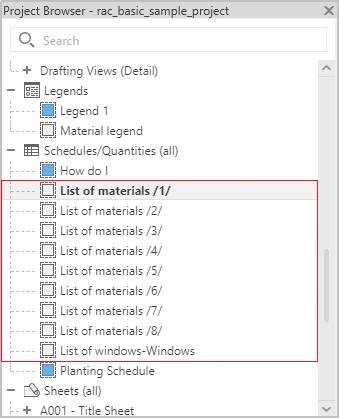
All imported spreadhseets will appear under Schedules/Quantities in the Project Browser.
← Visibility Align →