
# Bubbles

Hides or unhides symbols in selected elements. Displays a dialog, where you can define the visibility of the symbol in the selected element. Works on Levels, Grids, and Sections.
Define visibility of symbol in selected element. Works on Levels, Grids and Sections.
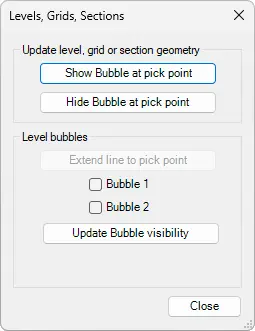
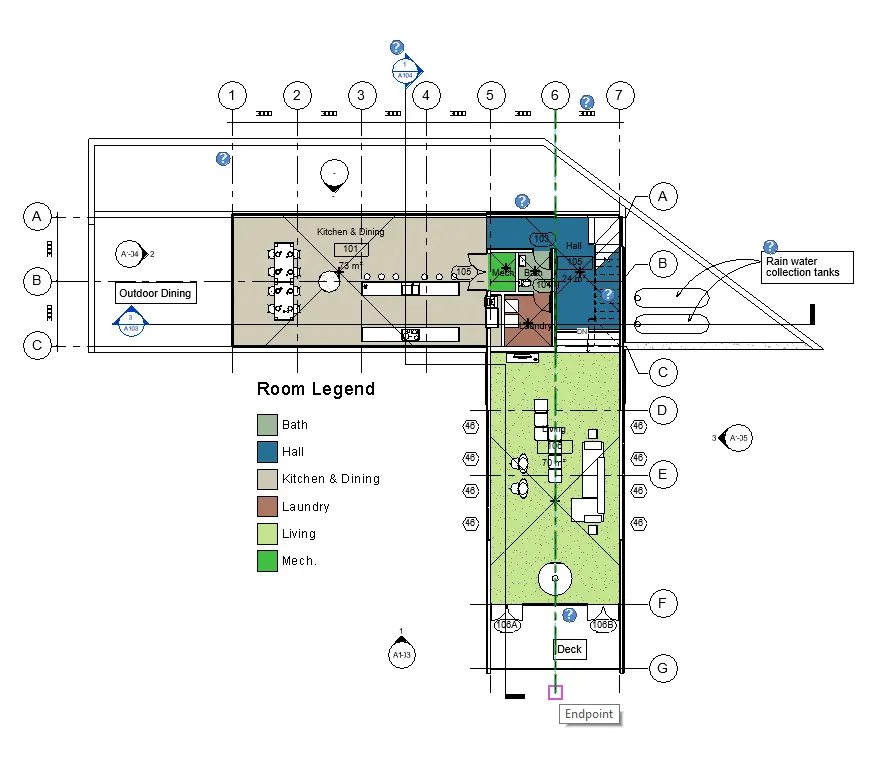
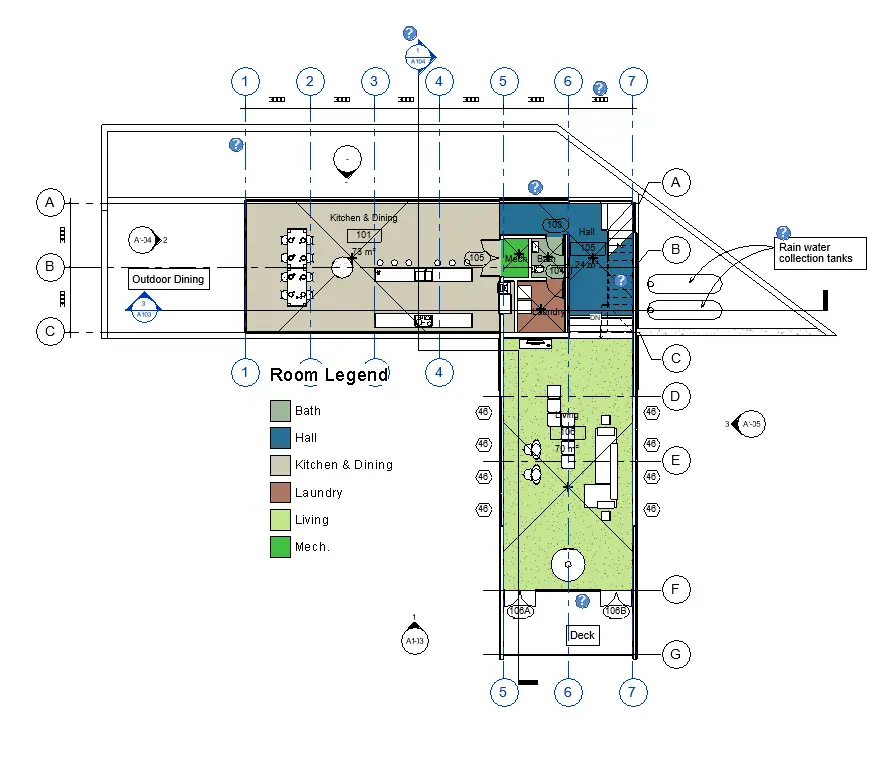
When clicking on the pick point of one grid, the tools show or hides bubbles on all previously selected grids.
Select Levels, Grids, or Sections > Click on the Kobi Toolkit tab > Go to the Annotate panel > Click on Bubbles > Click on Show Bubble at the pick point or Hide Bubble at the pick point
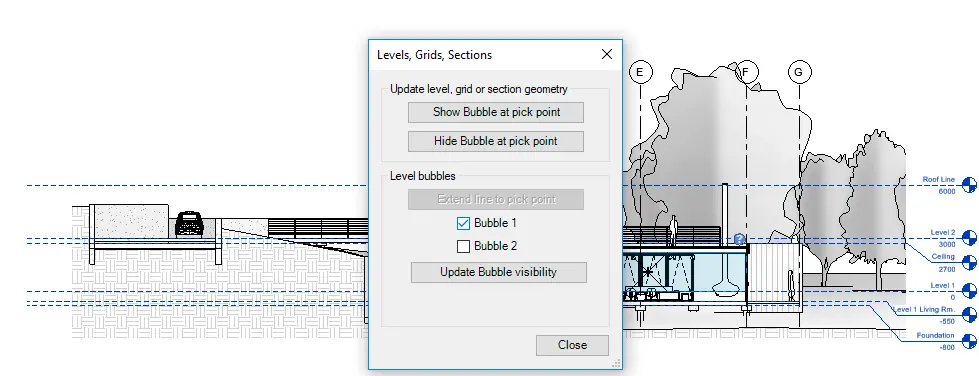
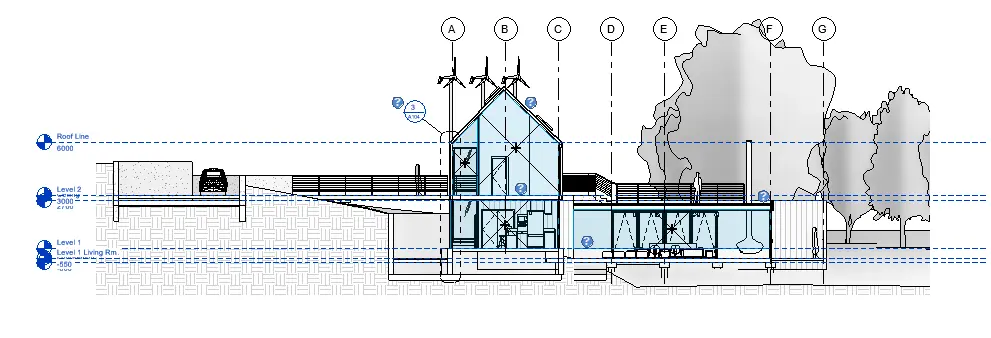
The second tool works for levels. It allows you to define which bubbles you want to have visible (right position, left position, or both).
Select Levels > Click on the Kobi Toolkit tab > go to Annotate panel > Click on Bubbles > Click on Bubble 1 > Click on Update Bubble visibility