
# Legend

Tools for creating legends.
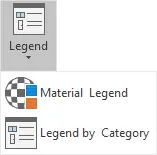
Material Legend

Creates a material legend based on the materials from a specified view. You can define settings such as header text, text styles for headers and labels, row spacing, and the list of legend patterns.
This tool must be run in an empty drafting view or a legend view.

Legend Settings
- View - In the drop-down menu, select the view for which you want to create a Material Legend. Materials from the selected view will be displayed in the Patterns section.
- Header text - Set custom text as header.
- Header text style - In the drop-down menu, select the text style for the header.
- Label text style - In the drop-down menu, select the text style for the label.
- Distance between rows - Set the distance between rows.
- Include surface patterns - Check the box to add surface patterns to the Legend Patterns selection.
- Include unplaced materials - Check the box to add unplaced patterns to the Legend Patterns selection.
Patterns
- Legend Patterns - Patterns that will be displayed in the Material Legend.
- Available Patterns - Patterns that are available and will not be displayed in the Material Legend
- Add
 - Click on patterns under available patterns to select them - Click on Add to transfer them to Legend Patterns
 - Remove
 - Click on patterns under Legend patterns to select them - Click on Remove to remove them from Legend patterns.
 - Move Up/Down
 /
/  - Patterns will be displayed in the current order, to reorder them use Move Up or Move Down.
Click on pattern under Legend patterns - Click on Move Up or Move Down to place them into the desired order.
- Patterns will be displayed in the current order, to reorder them use Move Up or Move Down.
Click on pattern under Legend patterns - Click on Move Up or Move Down to place them into the desired order.
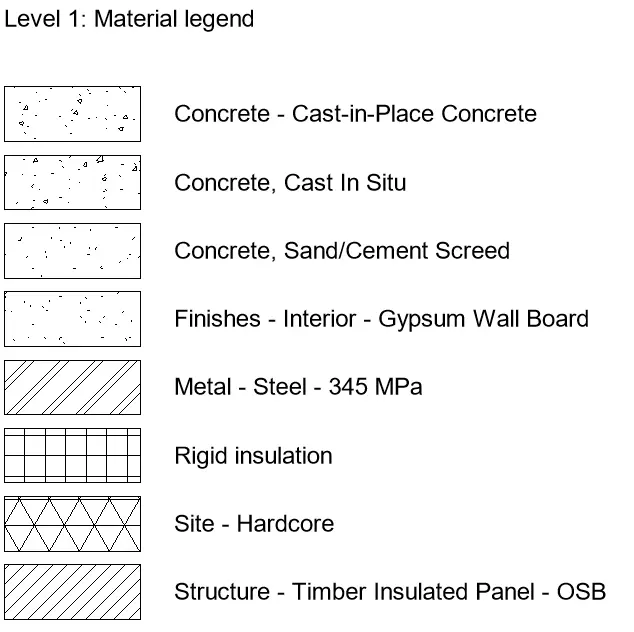
Open Drafting View or Legend View as active view > Go to View Tab > Create Panel > Select Drafting View or Legends-Legend > Create new view > Set name and scale > click OK > Click on Kobi Toolkit tab > Go to Annotate panel > Click on Material Legend > Set up desired options > Click OK
- Legend by Category

Creates a table with dynamic images of the instances of a chosen category within the current project. This tool needs to be run in a Legend View with at least one Legend Component in it.
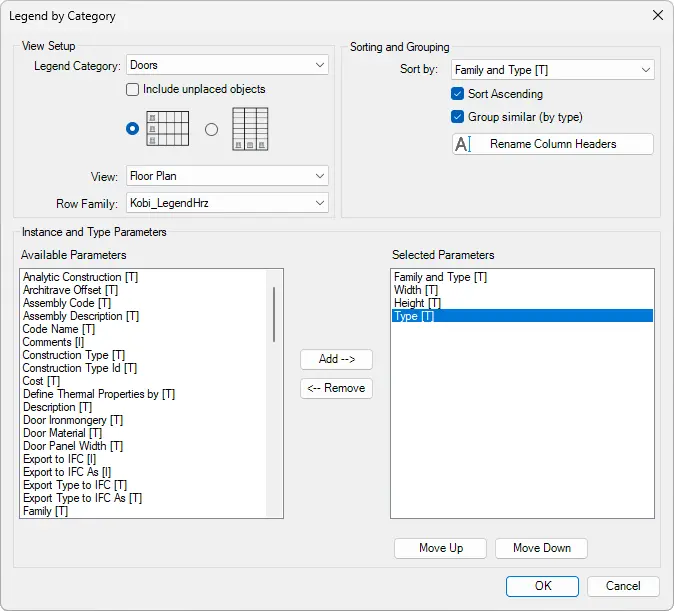
View Setup
- Legend Category - Select which category you want to display in the legend.
- Include unplaced objects - Includes unplaced objects in the legend.
- View - Select from which view the object will be displayed as a symbol.
- Row family - Select the legend style.
Sorting and Grouping
- Sort by - Sorts objects by selected parameter.
- Sort Ascending - Sort by ascending.
- Group similar (by type) - Groups similar objects and displays their count.
Instance and Type Parameters
- Available Parameters - Displays available parameters from selected categories.
- Selected parameters - Parameters that will be displayed in the legend.
- Add - Click on parameters under Available Parameters to select them. - Click on Add to transfer them to Selected Parameters.
- Remove - Click on patterns under Selected Parameters to select them. - Click on Remove to remove them from Selected Parameters.
- Move Up/Down / - Patterns will be displayed in the current order, to reorder them use Move Up or Move Down. - Click on the pattern under Selected patterns. - Click on Move Up or Move Down to place them into the desired order.
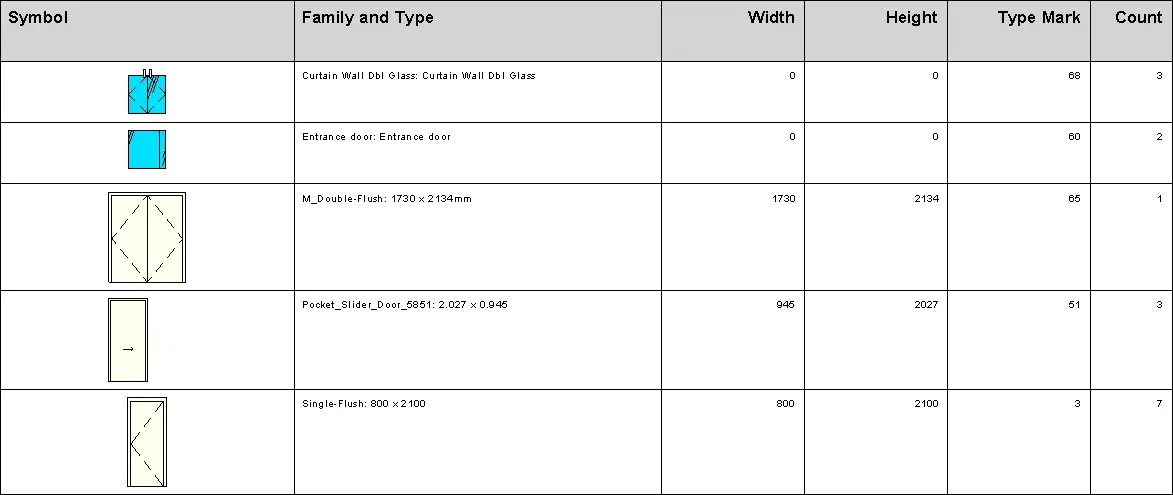
Open Legend view (View Tab) > Create Panel > Legends drop-down > Legend > Set name and scale > Click OK Place at least one legend component > Annotate tab > Detail panel > Component drop-down > Legend Component Place the symbol in the legend view > Click on the Kobi Toolkit tab > Go to Annotate panel > Click on Legend by Category > Set up desired options > Click OK