
# Align

This set of tools aligns text notes and labels to other text notes, labels, or lines, helping ensure consistent annotation alignment. The interactive align tools work in both plan and elevation views and are intended for use when editing annotation tags.
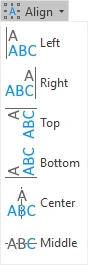
Click on the Kobi Toolkit tab > Go to Annotate panel > Click on Align icon
Left

Interactively aligns text, label, or tag on the left side.
Click on the Kobi Toolkit tab > go to Annotate panel > Align drop-down > Select Left > In active view select the text you want to align with > Select the text you want to align to the first selection
Right

Interactively aligns text, label, or tag on the right side.
Click on the Kobi Toolkit tab > go to Annotate panel > Align drop-down > Select Right > In active view select the text you want to align with > Select the text you want to align to the first selection
Top

Interactively aligns text, label, or tag on the top side.
Click on the Kobi Toolkit tab > go to Annotate panel > Align drop-down > Select Top > In active view select the text you want to align with > Select the text you want to align to the first selection
Bottom

Interactively aligns text, label, or tag on the bottom side.
Click on the Kobi Toolkit tab > go to Annotate panel > Align drop-down > Select Bottom > In active view select the text you want to align with > Select the text you want to align to the first selection
Center

Interactively aligns text, label, or tag on the center point.
Click on the Kobi Toolkit tab > go to Annotate panel > Align drop-down > Select Center > In active view select the text you want to align with > Select the text you want to align to the first selection
Middle

Interactively aligns text, label, or tag on the middle point.
Click on the Kobi Toolkit tab > go to Annotate panel > Align drop-down > Select _Middle _ > In active view select the text you want to align with > Select the text you want to align to the first selection