
# Filter

Selects elements based on defined criteria such as category, level, phase, room, family or element parameters. Elements can be filtered from the active view or the entire model and are presented in a tree structure for easy selection. Additional filtering can be applied based on defined property values.
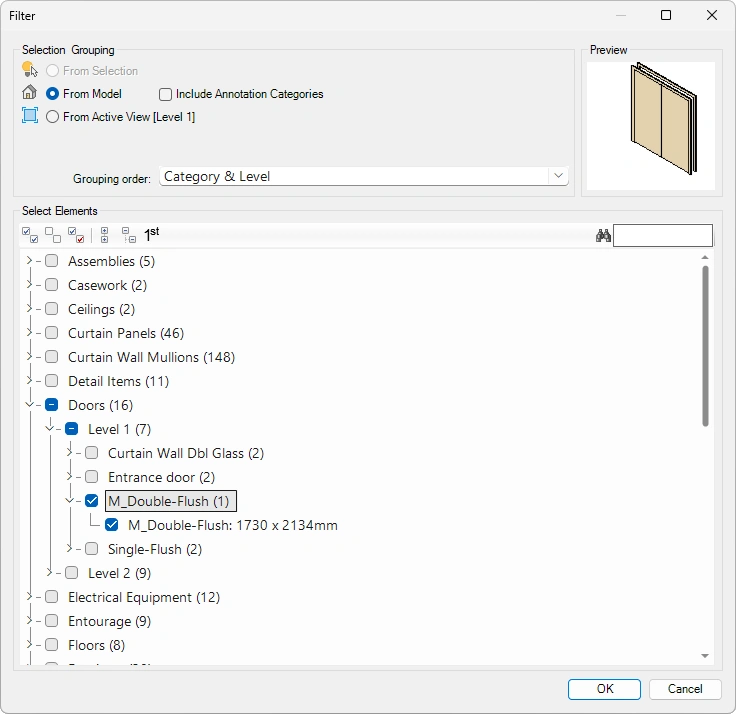
Selection Grouping
From Model: Select elements from the entire model. Optionally include Annotation Categories
From Active View: Select elements from the Active View.
Grouping order: Select grouping order for easier selection of the elements. It is possible to group elements
- Category
- Workset
- Category & Level
- Level
- Room
- Space
- Family
- Phase
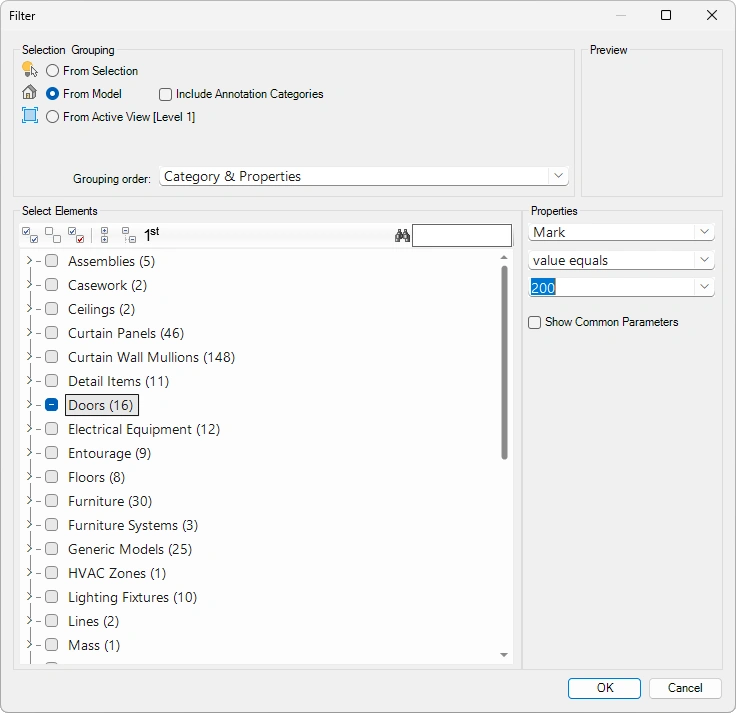
- Category & Properties
Note: When selecting grouping order Category & Properties, it is possible to filter elements based on their properties (Example: Filter Door elements, with the Mark parameter higher than 200)
Edit elements - Use the toolbar to:

- Select all nodes
- Deselect all nodes
- Invert checked nodes
- Collapse selected nodes
- Expand selected nodes
- Expand nodes on 1st level
- Search elements by name
Click on the Kobi Toolkit tab > Go to the Selection panel > Click on Filter > Select Elements > Press OK