
# Select

Set of tools for selection instances by Category, Type, Host, Bounding elements, or Worksets.
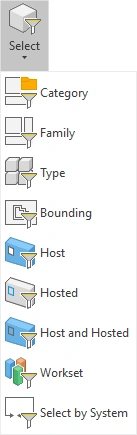
Category

Selects elements from the Active View or Entire Project according to the categories of the instances that were selected before running this tool.
Select an element > Click on the Kobi Toolkit tab > Go to the Selection panel > Select drop-down > Select Category > Click on Project or View (if you want to select elements from Entire Project or Active View)
Family

Selects elements from the Active View or Entire Project according to family of the instances that were selected before running this tool.
Select an element > Click on the Kobi Toolkit tab > Go to the Selection panel > Select drop-down > Select Family > Click on Project or View (if you want to select elements from Entire Project or Active View)
Type

Selects elements from the Active View or Entire Project according to the family and type of the instances that were selected before running this tool.
Select an element > Click on the Kobi Toolkit tab > Go to the Selection panel > Select drop-down > Select Type > Click on Project or View (if you want to select elements from Entire Project or Active View)
Bounding

Selects elements that are inside or tangent to the bounding box of the selected instances.
Select element > Click on Kobi Toolkit tab > go to Selection panel > Select drop-down > Select Bounding
Host

Selects the elements that host the instances that were selected before running this tool (e.g. wall from the window).
Select element > Click on the Kobi Toolkit tab > Go to the Selection panel > Select the drop-down > Select Host
Hosted

Selects the elements that are hosted by the instances that were selected before running this tool (e.g. all windows in a wall).
Select element > Click on Kobi Toolkit tab > Go to the Selection panel > Select drop-down > Select Hosted
Host and Hosted

Selects the host and hosted elements based on provided selection (e.g. start with family and it will select that family and all hosted elements).
Select element > Click on Kobi Toolkit tab > Go to the Selection panel > Select drop-down > Select Host and Hosted
Workset

Selects all instances that belong to the workset of the selected instances.
Select element > Click on Kobi Toolkit tab > Go to Selection panel > Select drop-down > Select Workset
Select by System

Automatically selects every instance in the model that shares the exact system name as your current selection.
Select element > Click on Kobi Toolkit tab > Go to Selection panel > Select drop-down > Select Select by System