
# Crop Region

Users can now edit a Crop Region to the current view. This can be created by giving the exact dimension of the crop region or by inputting the offset distance from the selected elements.

2D View Crop Region
Defines the crop region size according to project units.

Crop Region Width: changes width of the crop region for the entered value.
Crop Region Height: changes height of the crop region for the entered value.
Go to 2D active view > Click on Kobi Toolkit tab > Go to View panel > Crop Region drop-down > Select 2D View Crop Region > Set up crop region width and height in dialog window > Click Apply
Crop Region from Selection

Defines the crop region at a specified offset from the selected entities.
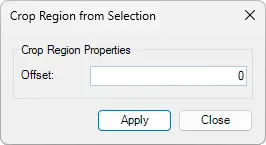
- Offset: offsets crop region on all sides for entered value.
Select the element in active view > Click on the Kobi Toolkit tab > Go to the View panel > Crop Region drop-down > Select Crop Region from Selection > Optionally set up offset in the dialog window > Click Apply
Match Crop Region

Matches the crop region size position in a current active view according to a selected view.

Go to 2D active view > Click on Kobi Toolkit tab > Go to View panel > Crop Region drop-down > Select Match Crop Region > Select Base crop view in dialog window > Click OK
Camera View Crop Region

Modifies the aspect ratio of the crop region for a selected camera view
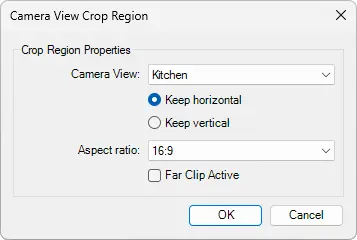
Camera View: Changes crop region properties to selected camera view
Keep horizontal/vertical: Will hold the horizontal or vertical ratio.
Aspect ratio: changes aspect ratio of a camera view
Far Clip Active
Click on Kobi Toolkit tab > go to View panel > Crop Region drop-down > Select Camera View Crop Region > Set up options in the dialog window > Click OK
- Crop View Using Rectangle

Draw a rectangle in the view to define the Crop View boundary. The tool automatically sets the view’s crop boundary to the drawn shape.

Click on Kobi Toolkit tab > go to View panel > Crop Region drop-down > Select rop View Using Rectangle > Draw a rectangle to define the Crop View boundary
← View Utils Sheet →