
# Toggle

Toggle element or category visibility for chosen views.
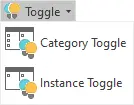
Category Toggle

A dialogue box offers the ability to select categories and then choose to display /hide its elements in one or more views at once. With Category Toggle there is no need to use the Visibility/Graphics dialogue box.
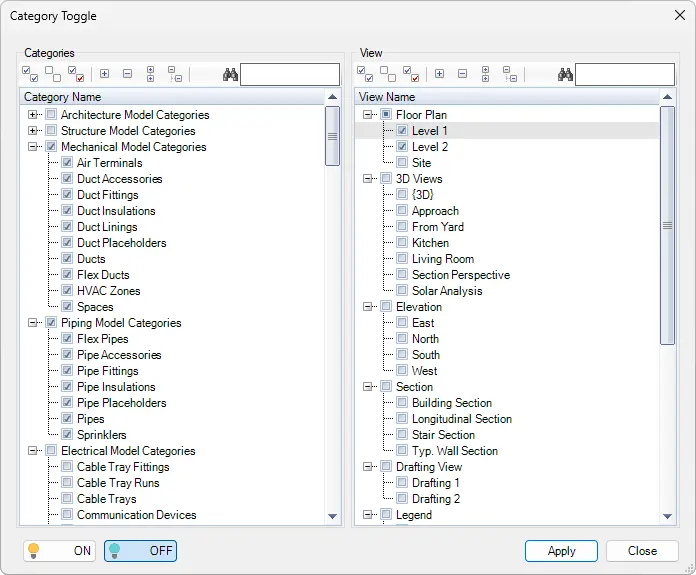
Use toolbar to:

Select all nodes
Deselect all nodes
Invert checked nodes
Collapse selected nodes
Expand selected nodes
Collapse all nodes
Expand all nodes
Search elements by name
Click on the Kobi Toolkit tab > Go to the View panel > Toggle drop-down > Select Category Toggle > Select the categories you want to reveal or hide > Select Views in which you want to reveal or hide > Click ON to display or OFF to hide selection from selected views > Click Apply
Instance Toggle

A dialogue box offers the ability to select categories and then choose to display /hide its elements in one or more views at once. With Category Toggle there is no need to use the Visibility/Graphics dialogue box.

Use toolbar to:
Select all nodes
Deselect all nodes
Invert checked nodes
Collapse selected nodes
Expand selected nodes
Collapse all nodes
Expand all nodes
Search elements by name
Click on the Kobi Toolkit tab > Go to the View panel > Toggle drop-down > Select Instance Toggle > Select the categories you want to reveal or hide > Select Views in which you want to reveal or hide > Click ON to display or OFF to hide selection from selected views > Click Apply
- Quick On/Off toggles


Quick toggles that enable you to switch certain Categories ON or OFF in active view (e.g. Turn OFF dimensions in active view).

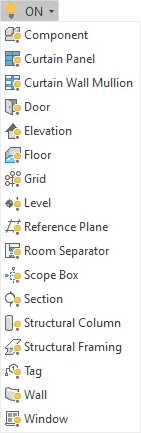
Click on Kobi Toolkit tab > Go to View panel > OFF or ON drop-down > Select category to display or hide its elements in active view