
# Resize Section Box

Resizes the section box in a 3D view based on defined settings. You can specify section box dimensions or fit the section box to selected elements, rooms, or levels. The tool displays a dialog where you can define the section box size, use preselected elements to set the section box, and optionally create a new 3D view.
Manual tab
Resizes the section box by manually changing its dimensions.
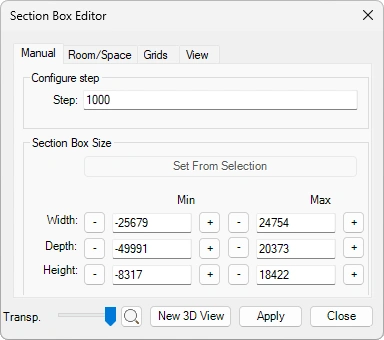
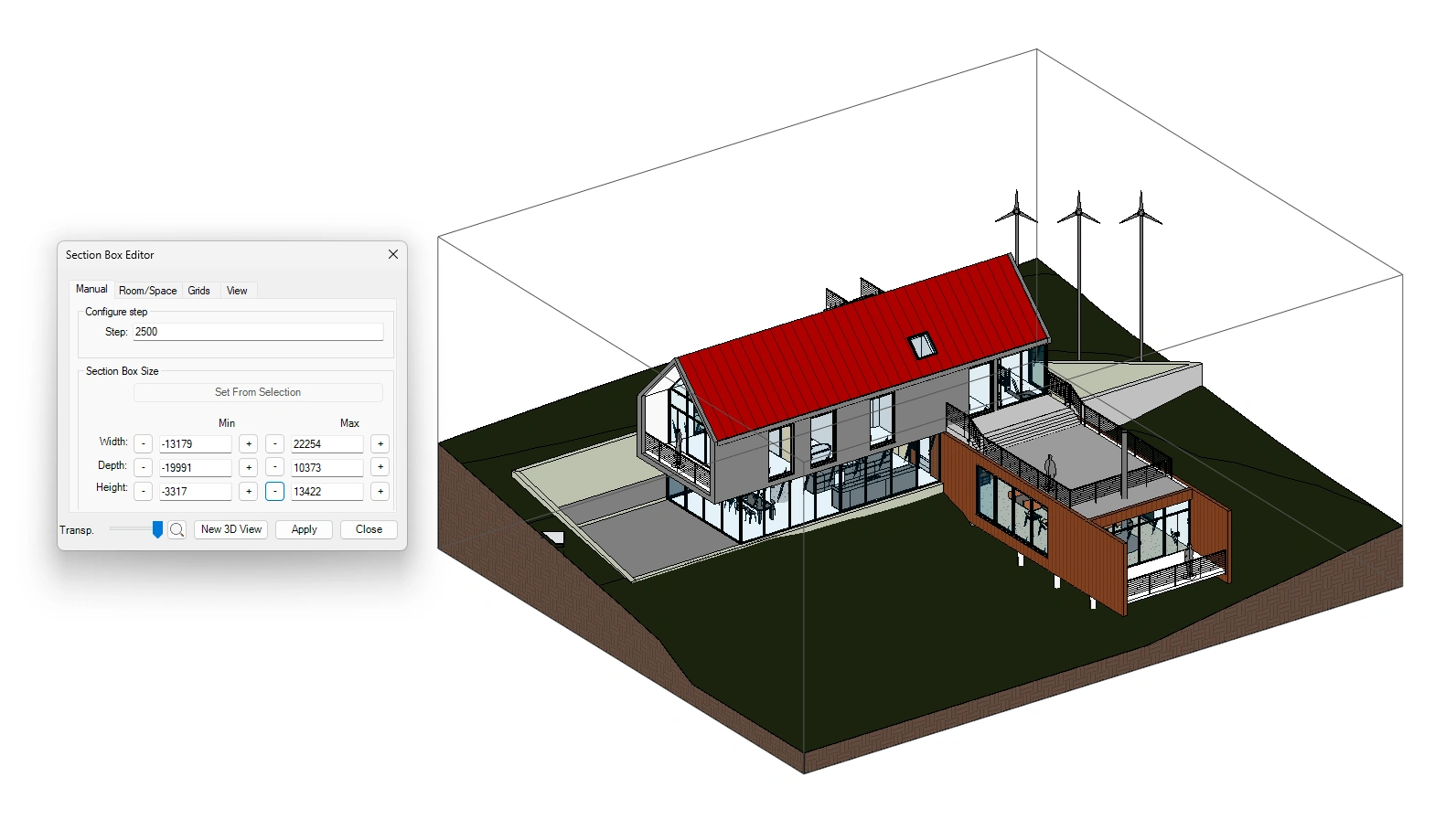
Configure step
- Increase or decrease section box size using the selected step value.
Section Box Size
Set From Selection: Sets the section box size based on preselected elements.
Width: Changes width range of the section box .
Depth: Changes depth range of the section box.
Height: Changes height range of the section box.
Enter values directly or use the increase
 and decrease
  buttons to adjust the size using the selected step value.
- Transparency - Adjust the transparency of the Resize Section Box window.

View
 - Allows you to zoom to, rotate and inspect the section box.
New 3D View - Creates a new 3D view and prompts for a view name. The new view is added under 3D Views in the Project Browser.
Apply - Applies the new section box size.
Close - Restores the section box to its previous size.
Click on the Kobi Toolkit tab > Go to the View panel > Select Resize Section Box > Configure step and dimensions of the Section Box > Select New 3D View to create new 3D views > Select Apply to apply section box size or Close to restore the section box to its previous size.
Room/Space
Resizes section box to boundaries of selected rooms or spaces.

Use the toolbar to:

- Collapse selected
- Expand selected
- Collapse all
- Expand all
Selection box – Select a Room or Space to create a selection box based on its boundaries.
Offset – Set an offset from selected Rooms/Spaces.
Preview Section Box – Shows a Section Box Preview.
Transparency - Adjust the transparency of the Resize Section Box window.
View
- Allows you to zoom to, rotate and inspect the section box.New 3D View – Creates a new 3D view and prompts for a view name. The new view is added under 3D Views in the Project Browser.
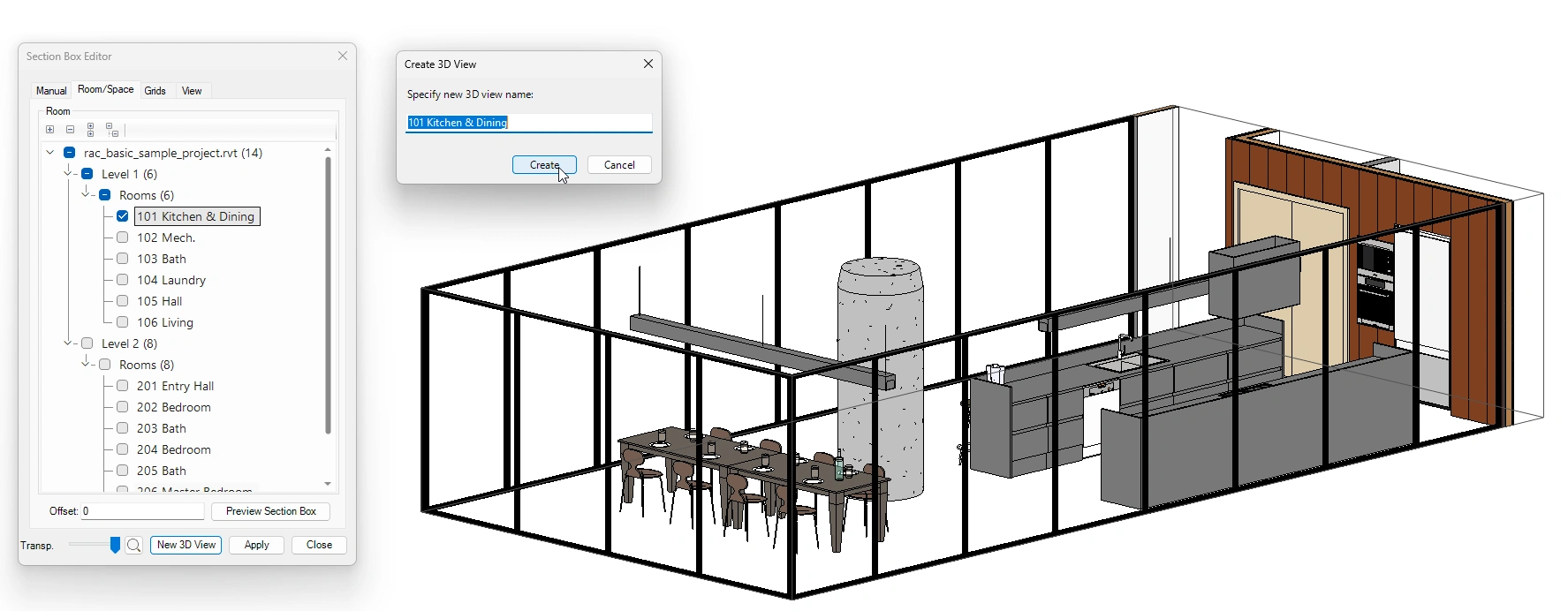
Apply – Applies the new section box size.
Close – Restores the section box to its previous size.
Click on the Kobi Toolkit tab > Go to the View panel > Select Resize Section Box > Go to Room/Space tab > Select rooms or spaces from the list > Click Apply
Grids
Resizes section box to boundaries of selected grids.

Use the toolbar to:
- Collapse selected
- Expand selected
- Collapse all
- Expand all
Selection box – Select a Room or Space to create a selection box based on its boundaries.
Offset – Set an offset from selected Rooms/Spaces.
Preview Section Box – Shows a Section Box Preview.
Transparency - Adjust the transparency of the Resize Section Box window.
View
- Allows you to zoom to, rotate and inspect the section box.New 3D View – Creates a new 3D view and prompts for a view name. The new view is added under 3D Views in the Project Browser.
Apply – Applies the new section box size.
Close – Restores the section box to its previous size.
Click on the Kobi Toolkit tab > Go to the View panel > Select Resize Section Box > Go to Grids tab > Select grids from the list > Click Apply
View
Resizes section box to selected level boundaries.

Select view from drop-down list.
Transparency - Adjust the transparency of the Resize Section Box window.
View
- Allows you to zoom to, rotate and inspect the section box.New 3D View – Creates a new 3D view and prompts for a view name. The new view is added under 3D Views in the Project Browser.
Apply – Applies the new section box size.
Close – Restores the section box to its previous size.
Click on the Kobi Toolkit tab > Go to the View panel > Select Resize Section Box > Go to View tab > Select view boundaries from the list > Click Apply