
# Guided Drive
Command Description
This command allows you to perform a guided swept path analysis by selecting an existing horizontal entity in the drawing, such as a line, polyline, or arc. After choosing a vehicle from the Vehicle Library, the software automatically generates the vehicle's swept path along the selected entity. This command is useful for quickly analyzing vehicle movements along predefined paths, such as driveways, intersections, or parking lots.
To create a guided drive analysis along a selected path entity
Click Kobi Swept Path > Create and Manage Analysis Panel > Guided Drive
 .
.Select existing horizontal swept path entity in a drawing. The following entities are supported: Lines, Arcs, Polylines, Splines.
In the “Vehicle Library” dialog box, select the appropriate vehicle and click the OK button.
The vehicle's swept path analysis is then created along the selected entity in the drawing.
The image bellow shows a horizontal swept path analysis of a passenger car along an existing path. The analysis stops at a point where the vehicle with the specified parameters, is no longer able to continue. In this specific case, the vehicle reaches a maximum allowable steering angle.
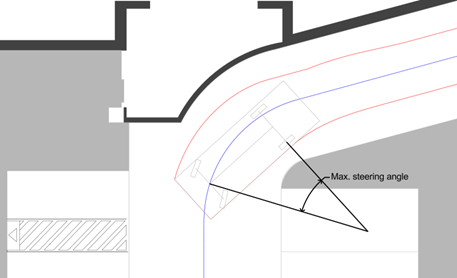
Another possible reason why the analysis stops at a certain point could be exceeding the maximum allowable horizontal or vertical articulation angle of a trailer attached to the vehicle. In longitudinal analyses, the analysis may also stop if the vehicle body collides with the selected entity.
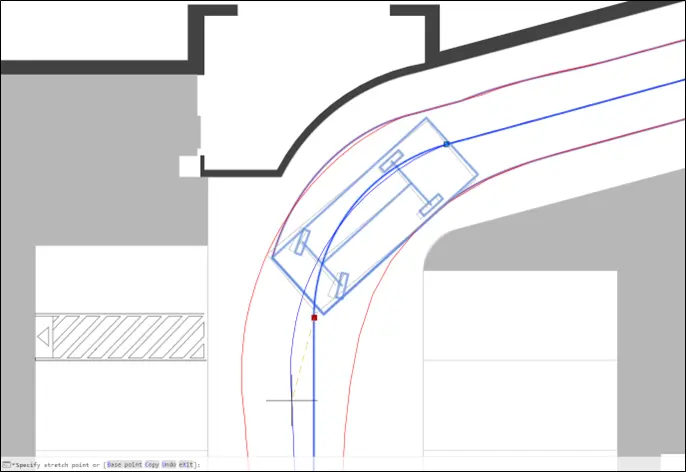
If you want to continue from the point where the analysis stopped, you can grab the grip of the Kobi Swept Path Analysis and move it to another position, thereby increasing the radius of the existing vehicle path, which typically represents the road alignment.
Note: Use the Animation command to create a driving animation, to place a vehicle stamp at any chosen station, and to view information about the associated vehicle. Use the Graph command to create a swept path analysis graph.