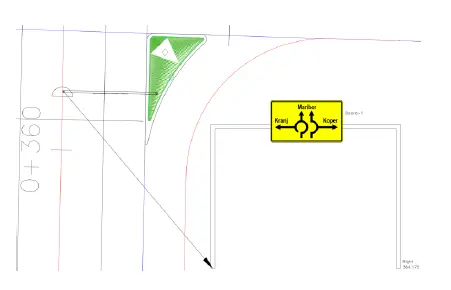
# Create Guide Signs
To create a Guide Sign
Follow the steps in the previous sections to insert an empty Board and add elements on it.
Launch the “Insert Sign Holder” command.
Click the
 button and select the Board together with the added elements.

Enter the Board name in the Command line.
Select the appropriate Sign Holder from the Construction drop-down list and specify all required Sign Holder parameter, as described in the “Insert Sign Holder” section.
Set Board Size to 1 to use the actual Board dimensions – as specified in the Board block, or use another value to scale the Board block.
Click
 in the “Insert Sign Holder” dialog.
Select Polyline, Alignment, Feature Line to align the Sign Holder to. Or use the option [None] to insert a new Sign Holder that will not be associated to any linear entity.
If the linear entity is selected, then specify Sign Holder insertion point or type the station value.
- The top view (2D) block of a Sign Holder is created in the insertion point by default.
Enter an offset of the Sign insertion point from the selected linear entity.
Specify the Sign Holder rotation angle.
- Press “Enter” to place Sign Holder perpendiculary to the selected linear entity.
Specify the insertion point of the Sign Holder section block.
Specify rotation angle of the Sign Holder section block.