
# Sign Holder Manager
Command Description
The “Sign Holder Manager” command is used to edit parameters of Sign Holders and the associated Traffic Signs. It allows you to add additional Signs to existing Sign Holder. By using this command, you can create custom Sign Holders templates.
To edit Sign Holder in the Sign Holder Manager
- Click Kobi Signs and Stripes tab > Traffic Signs panel > Sign Holder Manager


- Edit Sign Holder Parameters:
Edit the Name of the Sign Holder.
Edit the Description of the Sign holder.
Select Sign Holder from a template list.
Change the status of the Sign Holder (“New” or “Existing”).
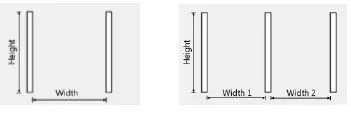
Edit the Height of the Sign Holder.
Adjust to highest sign – select this option to adjust elevation of the Sign Holder to the top elevation of the highest Sign.
Width 1 – edit the width between two columns of the Sign Holder. This option is not available when a single-column Sign Holder is selected.
Width 2 – edit the width between second and third column of the Sign Holder. This option is not available when a single or double-column Sign Holder is selected.
3D - select this option to create 3D model of a Traffic Sign.
Project to Surface – select the appropriate TIN surface from the drawing
 or from the drop-down list
  to project the 3D model.
Press »Additional Setting« button to create new or edit existing Sign Holder Template.
Edit the Sign parameters.
Edit the Sign Size.
Edit the Sign size Name.
Edit the Sign size description.
Specify the top elevation of the Sign on the Sign Holder.
Sign Height - displays (read-only) the height of the Sign.
Specify the bottom elevation of the Sign on the Sign Holder.
Sign width – displays (read-only) width of the Sign.
Offset side – specify the offset distance of the Sign from the Sign Holder, measured from insertion point of the Sign.
Use this option “Invert” to invert the Sign to the opposite side of the Sign Holder.
Specify the radial offset of the Sign from the Sign Holder.
Use the option “Block variant” the change the variant of the Sign block.
Status – choose between the “Existing” and the “New”.
Click
 to add additional Signs to the Sign Holder.
Click
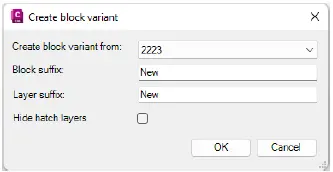
 to create a new variant of the Sign block:
select the starting block to create a new variant,
enter the block name suffix,
enter the layer name suffix,
optionally select the “Hide hatch layers” option.
Note that this option is commonly used for inserting Traffic Signs that already exist of the road.
- Click
 in the “Sign Holder Manager” dialog when finish editing.
To edit Traffic Signs on the Sign Holder Section view
You can edit Traffic Signs directly on the Sign Holder Section view:

Set the variable PICKSTYLE to the value 0,
Select the Traffic Sign in Section view, pick its insertion point and move its position on the Sign Holder,
Use the ATTEDIT command to edit Traffic Sign attributes values. Editing attributes through the Properties palette is not supported.
To move Sign Holder
For AutoCAD or AutoCAD Civil 3D platform, follow the steps below.
If you created 2D and 3D model of the Sign Holder, then use the following workflow:
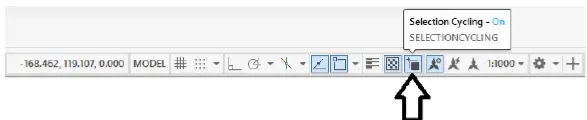
- Turn on the Selection Cycling.
- Select the Top view block of the Sign Holder that you want to move (on the layer “Traffic-2D”).

- Pick the block insertion point and move it to another location.

If you created a 2D model of the Sign Holder, follow steps 2 and 3.
For BricsCAD platform, follow the steps below.
If you created 2D and 3D model of the Sign Holder, then use the following workflow:
Place the mouse cursor on the Top view block (without clicking on it).
Press the Tab key on the keyboard to switch to the “newTraffic-2D” layer and click on the block.

- Pick the block insertion point and move it to another location.
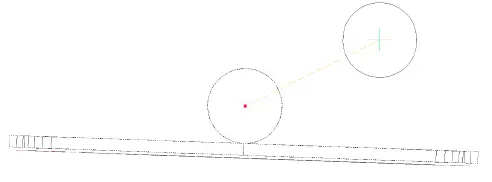
If you created a 2D model of the Sign Holder, then select the block, pick its insertion point and move it.
To delete Sign Holder
Select the Top view block or the Section block of the Sign Holder and press “Delete” button.
To rotate Sign Holder
Select the block on “newTraffic-2D” layer, in the command line type “rotate” and define rotation angle.