
# Edit Guide Signs
To edit a Guide Sign
- Launch the BEDIT command to open the Board block in the Block Editor.

Edit the Height and Length of the Board.
Edit (scale, rotate, move, stretch, delete …) existing elements on the Board.
Launch the KOBI_GUIDESIGNS command (or click the
 icon) to add new elements to a Board block.
Add the Texts/Mtexts and Attribute Definitions to the Board block.
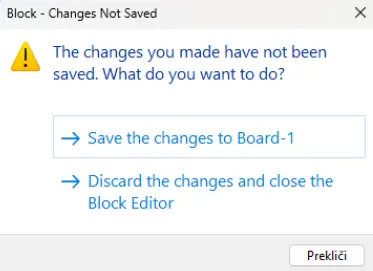
Close the Block Editor and save the changes.
- Sign Holder with the attached Guide Sign is automatically updated.
To create a custom Guide Sign library
Follow steps 1 to 4, described in the “To create a Guide Sign” section to create a new Guide Sign.
Launch the WBLOCK command to save the block to a new file, as shown on the figure below.

Insert the Guide Sign into the desired drawing the INSERT command.
Launch the KOBI_INSERTSIGNHOLDER command.
Click the icon
 in the “Insert Sign Holder” dialog to select the previously inserted Board bock in a drawing.
Select the appropriate Sign Holder and specify other required Sign Holder and Sign parameters.
Click
 to insert the Sign Holder into the drawing.