
# Create Reverse Profile
Command Description
Finished Ground Profile is not automatically updated, when you reverse the direction and stationing of an Alignment, but it retains the original direction. The “Create Reverse Profile” command allows you to reverse the Finished Ground Profile direction, after the Alignment direction is reversed.
To create reverse profile
- Open a drawing that contains Alignment and a dependent Profile view.

- Select an Alignment > Alignment Contextual Ribbon Tab > Modify panel > Reverse direction


Alignment direction and stationing are now reversed. Existing Ground Profile that reference the Alignment is automatically updated, while Finished Ground Profile still retains the old direction.
Click Kobi Toolkit for Civil 3D tab > Profiles panel > Create Reverse Profile

Select Finished Ground Profile in a Profile View.
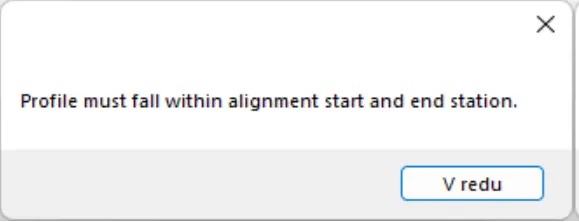
If the Finished Ground Profile starts before or ends after the Alignment stations, then the following dialog prompts the user to edit the Profile stations.
- New reversed Finished Ground Profile is created in a Profile View. Old Finished Ground Profile is still drawn and can be deleted manually.
