
# Edit Grading
Click Kobi Toolkit for Civil 3D tab > Surfaces and Grading panel > Edit Grading

Select any grading element (3D polyline, ray, surface) to edit grading.

Click
 near the grading component you want to edit parameters. You can also change the grading method.
Click
 to add new grading components and select the appropriate grading methods.
Specify required grading parameters for each grading method.
Click
 in the Grading components section to delete selected grading component.
Click
 or
or  to move the grading component up or down the list. This allows you to change the order of grading components. The baseline (starting component) of the moved component will be updated accordingly.
Click
 to change the side of the selected grading component.
Click
 .
.If you split the grading into multiple segments using the "Multiple segments" option, you can navigate between them using the
 and
and  buttons. For example, the label "2 of 3" indicates that you are currently viewing the second grading segment out of three. The selected segment is also highlighted in the drawing. While you can change the grading methods and edit parameters for each segment, it is not possible to add, remove, or reposition grading components within segmented grading.

Note that you can edit grading directly in the drawing with grading grips. Grips can be moved only in the horizontal direction:
- select grading surface or grading ray and move grading grips,
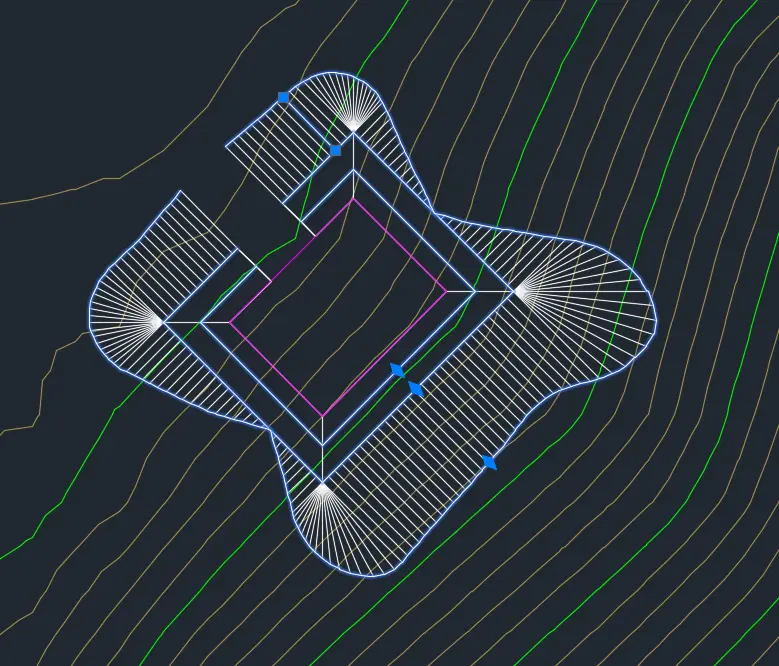
- or select grading 3D polyline and move grading grip.
