
# Edit Profile Views
Command Description
The “Edit Profile Views” command allows you to adjust properties of more than one profile view simultaneously.
To adjust style of profile views
You can adjust style of multiple profile views by simply clicking Kobi Toolkit for Civil 3D tab > Profiles > Edit Profile Views or typing “KOBI_EDITPROFILEVIEWS” in the command line, selecting the profile views you want to adjust and selecting a new style from the profile view style dropdown. The “No Change” option will keep the current styles of profile views.
To adjust bands of profile views
- Click Kobi Toolkit for Civil 3D tab > Profiles > Edit Profile Views


Uncheck the “No Change” checkbox to allow changes.
If you want to use different bands, you can import band sets using “Import band set…” button under the table.
Select location of bands (Top of profile view or bottom of profile view).
Edit bands properties. You can edit the following properties (when it is possible to edit them according to the band type): style, gap, show labels, label at start station, label at end station, profile 1, profile 2, weeding, stagger labels and stagger line height. Profile 1 and profile 2 columns are hidden when selected profile views are from different alignments.
Move bands up and down using arrows on the righthand side or delete them using the red “X” button above the arrows.
To adjust elevations of profile views
Click Kobi Toolkit for Civil 3D tab > Profiles > Edit Profile Views,
Select one of the following options from Elevations: a. Automatic height,
b. User specified absolute height – set the absolute height for all profile views or select split profile view option. If you want to split profile views, enter absolute height and select station and datum rounding options.
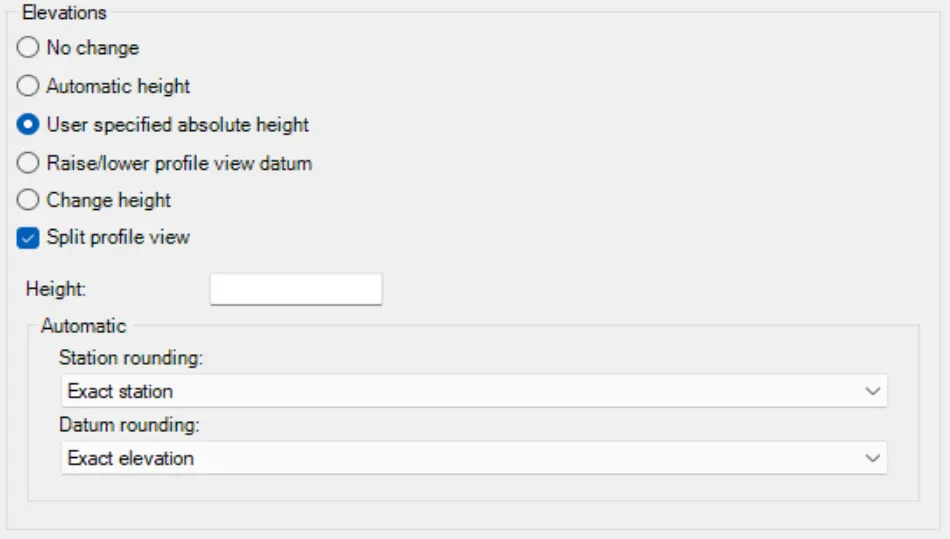
c. Raise/lower profile view datum – changes elevation of profile view for entered relative height difference,
d. Change height – changes profile height by keeping the datum at same level.