
# COGO Points Legend
Command Description
The “COGO Points Legend” command is used to create a legend of COGO point markers (symbols) from the drawing, a selected window, or a viewport. Legends can be updated automatically based on the defined area or viewport. You can optionally include a count column and save item descriptions and order for future reuse.
To create a COGO points legend
- Click Kobi Toolkit for Civil 3D tab > Points panel > COGO Points Legend
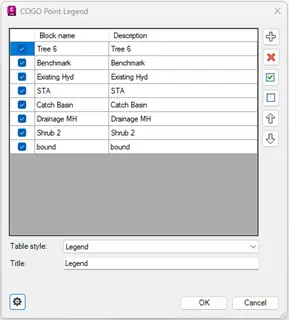
Select COGO points manually using checkbox.
a. Click
 to select COGO points from drawing
b. Click
 to deselect COGO points from drawing
c. Click
 to select all COGO points
d. Click
 to deselect all COGO points
e. Move row up or down by clicking


In a drop-down menu select predefined table style.
Specify the title of the COGO point legend.
Click
 to open table settings.
a. Enter the first column title for the block name. Note that COGO point symbols are defined by AutoCAD blocks.
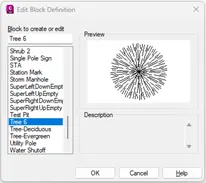
b. Enter the second column title for the block description.
c. Specify the cell text height factor.
d. Specify the cell width factor to the longest description.
e. Specify the first column margin ratio.
f. Enter a description for each block. The description is displayed in the second column next to the COGO point symbol in the point legend.
g. Move blocks up and down the table by clicking
h. Click
 to save settings.
When selecting COGO points in a drawing with identical symbol (block) names, the descriptions from the settings are used by default. The block names can be still edited in the Description column of the COGO Point Legend dialog. To change the default descriptions, click on the in the COGO point Legend dialog, change the descriptions and click to save new default settings.
to save settings.
When selecting COGO points in a drawing with identical symbol (block) names, the descriptions from the settings are used by default. The block names can be still edited in the Description column of the COGO Point Legend dialog. To change the default descriptions, click on the in the COGO point Legend dialog, change the descriptions and click to save new default settings.Select the location for the upper-left corner of the table in the drawing.
